> ## Documentation Index
> Fetch the complete documentation index at: https://docs.daydream.live/llms.txt
> Use this file to discover all available pages before exploring further.
# Using DMX
> Control Scope from lighting consoles and show control software via Art-Net DMX
# Controlling Scope from lighting consoles with DMX and Art-Net
DMX (Digital Multiplex) is the industry standard for controlling stage lighting and effects. Scope supports the **Art-Net** protocol, allowing you to map DMX channels directly to pipeline parameters. If you are already running a lighting console for a show, you can control Scope's real-time AI video from the same surface you use for lights.
For software-based control with named parameters, consider [OSC](/scope/guides/osc) or [MIDI](/scope/guides/midi) instead. DMX is best when you are already running a lighting desk or need to integrate Scope into an existing show control system.
***
## Why DMX?
DMX is the standard protocol in professional live events. If you are running a lighting console (grandMA, Chamsys, ETC, etc.), DMX lets you control Scope from the same surface you are already using for your fixtures, turning AI-generated visuals into another element in your cue list.
| | DMX / Art-Net | OSC | MIDI |
| -------------- | --------------------------------- | ---------------------------------- | ------------------------- |
| **Values** | 8-bit integers (0 to 255) | Floats, strings, ints | 7-bit integers (0 to 127) |
| **Transport** | UDP (Art-Net) or 5-pin XLR | UDP | USB or 5-pin DIN |
| **Addressing** | Universe + Channel (numeric) | Named paths (`/scope/noise_scale`) | CC numbers |
| **Setup** | Requires explicit channel mapping | Direct parameter paths | Learn-based |
| **Pro use** | Standard in live events | Common in media servers | Common in studios |
DMX gives you 512 channels per universe with 256 steps of resolution per channel. Unlike OSC and MIDI where the protocol includes parameter names, DMX requires you to configure which channel controls which parameter.
***
## What you'll need
* Daydream Scope running (the Art-Net server starts automatically on UDP port 6454)
* An Art-Net source: lighting console, QLC+, MagicQ, TouchDesigner, or similar
* All devices on the same local network (or running on the same machine using `localhost`)
***
## Enabling DMX in Scope
DMX input is disabled by default. You need to turn it on before Scope will listen for Art-Net packets.
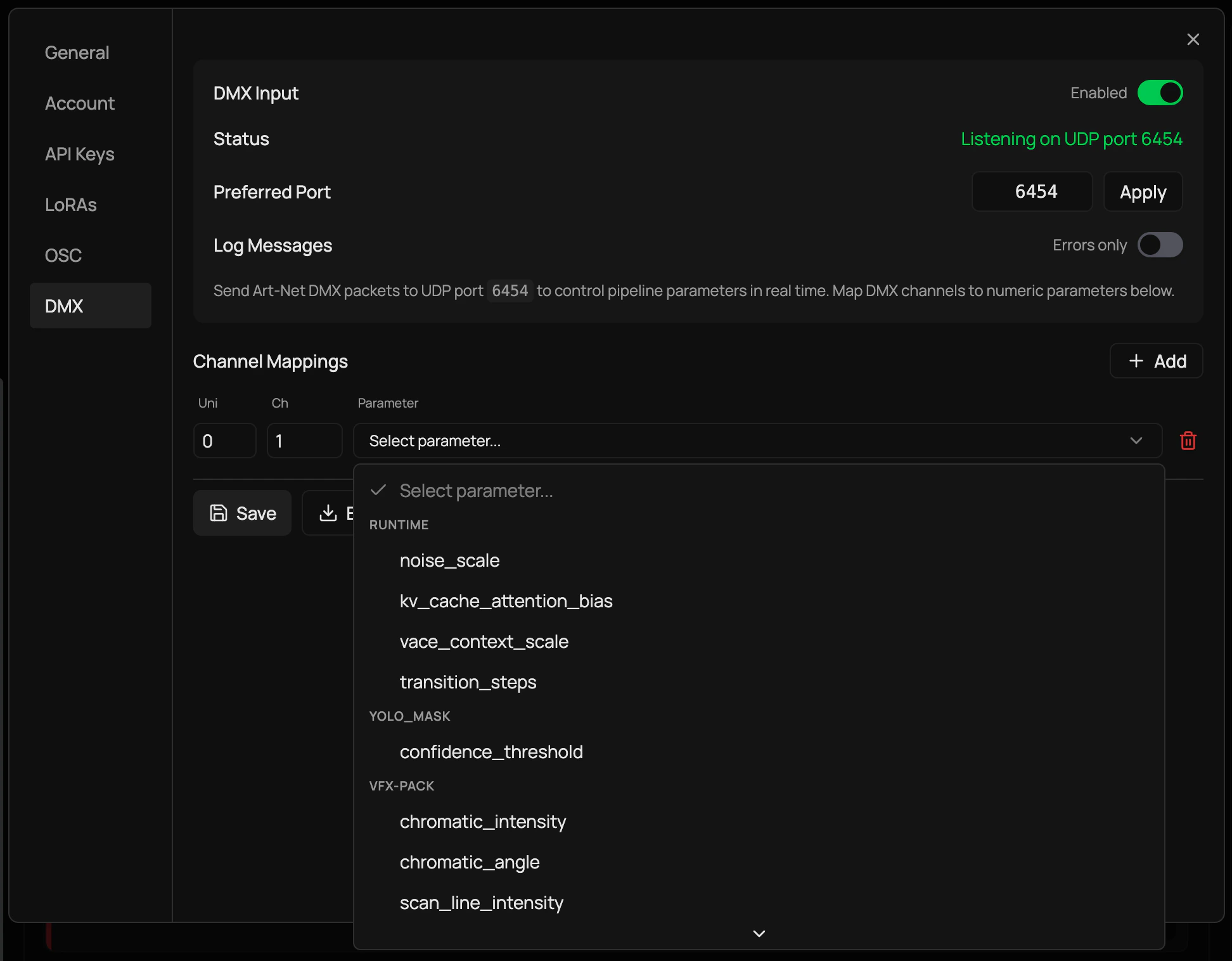
Launch Scope and go to **Settings** (gear icon, top-right), then select the **DMX** tab.
Toggle the **Enable** switch to on. You should see a status indicator showing "Listening on UDP port 6454".
The default Art-Net port is 6454. If that port is already in use by another application, Scope will automatically try 6455, 6456, and 6457 as fallbacks. You can also set a preferred port manually in the port input field.
 The DMX server binds to all network interfaces (`0.0.0.0`) by default, so it accepts Art-Net from any device on the network.
***
## Configuring channel mappings
Unlike OSC (which uses named addresses) or MIDI (which uses learn mode), DMX channels are just numbers. You need to tell Scope what each channel should control.
In the DMX settings tab, click **Add Mapping**. A new row appears in the mappings grid.
Enter the **Universe** number (usually 0) and the **Channel** number (1 to 512).
Select a pipeline parameter from the dropdown. Parameters are grouped by pipeline, and only numeric types (float, integer) are available for mapping. The dropdown shows each parameter's description and value range.
Click **Save** to persist your configuration. Mappings are stored at `~/.daydream-scope/dmx-config.json` and survive server restarts.
Send a DMX value on that channel from your console. The parameter should update in real-time.
DMX values (0 to 255) are automatically scaled to each parameter's min/max range. For example, if a parameter ranges from 0.0 to 1.0, a DMX value of 128 maps to approximately 0.5.
DMX channels are 1-indexed (1 to 512) following the industry convention, even though Art-Net packets use 0-indexed channels internally. Scope handles this conversion for you.
***
## Import and export
The DMX settings tab includes **Export** and **Import** buttons for your channel mapping configuration:
* **Export** downloads your current mappings as a `scope-dmx-config.json` file
* **Import** loads mappings from a previously exported JSON file
Export your configuration before making changes to a show. This is especially helpful when moving between venues or sharing setups with other operators.
***
## Connecting your Art-Net source
### Lighting consoles (grandMA, Chamsys, ETC)
Most professional consoles have Art-Net output built in:
In your console's network settings, enable Art-Net output.
Set the destination IP to the machine running Scope, or use `255.255.255.255` for broadcast.
Map fixtures or channels to the same universe and channel numbers you configured in Scope. Treat each Scope parameter like a fixture attribute.
### QLC+ (free lighting software)
Go to **Inputs/Outputs** and add an Art-Net output plugin.
Set the output universe to match your Scope mappings.
Use the Simple Desk to control channels directly, or create fixtures for a more structured setup.
### TouchDesigner
Add a **DMX Out CHOP** to your network.
Set **Network Protocol** to "Art-Net", **Network Address** to the Scope machine's IP, and **Universe** to match your mappings.
Connect a CHOP with channel data to the DMX Out. Each sample value (0 to 1) maps to DMX values (0 to 255).
### Python (stupidArtnet)
For scripted or automated control, you can send Art-Net packets from Python:
```python theme={null}
from stupidArtnet import StupidArtnet
# Connect to Scope (same machine)
artnet = StupidArtnet("127.0.0.1", 0) # Universe 0
artnet.start()
# Build a DMX packet (512 channels)
packet = [0] * 512
# Set channel 1 to 50% (128/255)
packet[0] = 128 # Channel 1 (0-indexed in code, 1-indexed in Scope UI)
artnet.set(packet)
artnet.show()
```
***
## Planning your channel layout
A typical mapping strategy for a show:
| Channel | Parameter | Range |
| ------- | -------------------- | ----------- |
| 1 | `noise_scale` | 0.0 to 1.0 |
| 2 | `transition_steps` | 0 to 100 |
| 3 | `guidance_scale` | 1.0 to 10.0 |
| 4 | `vace_context_scale` | 0.0 to 1.0 |
Keep a channel map document alongside your show file. Future you, or the next operator, will thank you.
***
## Multi-universe support
Scope accepts Art-Net on any universe. When creating mappings, specify the universe number to separate concerns:
* **Universe 0, Channel 1** maps to one parameter
* **Universe 1, Channel 1** maps to a different parameter
This lets you integrate Scope into larger Art-Net networks without channel conflicts. The UI supports universe numbers from 0 to 32767.
***
## Troubleshooting
* Check that the DMX status in Settings shows "Listening on UDP port 6454"
* Verify your Art-Net source is targeting the correct IP and port
* Check that you have created a mapping for the channel you are sending
* Ensure your firewall allows UDP on port 6454
Check your parameter's min/max range in the mapping dropdown. DMX 0 maps to min, DMX 255 maps to max. If the behavior seems inverted, swap your min and max values.
Art-Net over UDP is fast but does not guarantee delivery. On busy networks or Wi-Fi, you may see occasional drops. For mission-critical shows, use a dedicated Art-Net network or wired connections.
Another application is using the Art-Net port. Close other Art-Net receivers, or let Scope fall back to ports 6455 through 6457. You can also set a preferred port manually in the settings.
* Verify both machines are on the same subnet
* Replace `localhost` with the actual LAN IP of the Scope machine
* Check that no firewall is blocking UDP on port 6454
* Try the broadcast address `255.255.255.255` if unicast is not working
***
## See also
Control Scope with named parameter paths over UDP
Control Scope from MIDI controllers and DAWs
Share real-time video between Scope and other applications on Windows
The DMX server binds to all network interfaces (`0.0.0.0`) by default, so it accepts Art-Net from any device on the network.
***
## Configuring channel mappings
Unlike OSC (which uses named addresses) or MIDI (which uses learn mode), DMX channels are just numbers. You need to tell Scope what each channel should control.
In the DMX settings tab, click **Add Mapping**. A new row appears in the mappings grid.
Enter the **Universe** number (usually 0) and the **Channel** number (1 to 512).
Select a pipeline parameter from the dropdown. Parameters are grouped by pipeline, and only numeric types (float, integer) are available for mapping. The dropdown shows each parameter's description and value range.
Click **Save** to persist your configuration. Mappings are stored at `~/.daydream-scope/dmx-config.json` and survive server restarts.
Send a DMX value on that channel from your console. The parameter should update in real-time.
DMX values (0 to 255) are automatically scaled to each parameter's min/max range. For example, if a parameter ranges from 0.0 to 1.0, a DMX value of 128 maps to approximately 0.5.
DMX channels are 1-indexed (1 to 512) following the industry convention, even though Art-Net packets use 0-indexed channels internally. Scope handles this conversion for you.
***
## Import and export
The DMX settings tab includes **Export** and **Import** buttons for your channel mapping configuration:
* **Export** downloads your current mappings as a `scope-dmx-config.json` file
* **Import** loads mappings from a previously exported JSON file
Export your configuration before making changes to a show. This is especially helpful when moving between venues or sharing setups with other operators.
***
## Connecting your Art-Net source
### Lighting consoles (grandMA, Chamsys, ETC)
Most professional consoles have Art-Net output built in:
In your console's network settings, enable Art-Net output.
Set the destination IP to the machine running Scope, or use `255.255.255.255` for broadcast.
Map fixtures or channels to the same universe and channel numbers you configured in Scope. Treat each Scope parameter like a fixture attribute.
### QLC+ (free lighting software)
Go to **Inputs/Outputs** and add an Art-Net output plugin.
Set the output universe to match your Scope mappings.
Use the Simple Desk to control channels directly, or create fixtures for a more structured setup.
### TouchDesigner
Add a **DMX Out CHOP** to your network.
Set **Network Protocol** to "Art-Net", **Network Address** to the Scope machine's IP, and **Universe** to match your mappings.
Connect a CHOP with channel data to the DMX Out. Each sample value (0 to 1) maps to DMX values (0 to 255).
### Python (stupidArtnet)
For scripted or automated control, you can send Art-Net packets from Python:
```python theme={null}
from stupidArtnet import StupidArtnet
# Connect to Scope (same machine)
artnet = StupidArtnet("127.0.0.1", 0) # Universe 0
artnet.start()
# Build a DMX packet (512 channels)
packet = [0] * 512
# Set channel 1 to 50% (128/255)
packet[0] = 128 # Channel 1 (0-indexed in code, 1-indexed in Scope UI)
artnet.set(packet)
artnet.show()
```
***
## Planning your channel layout
A typical mapping strategy for a show:
| Channel | Parameter | Range |
| ------- | -------------------- | ----------- |
| 1 | `noise_scale` | 0.0 to 1.0 |
| 2 | `transition_steps` | 0 to 100 |
| 3 | `guidance_scale` | 1.0 to 10.0 |
| 4 | `vace_context_scale` | 0.0 to 1.0 |
Keep a channel map document alongside your show file. Future you, or the next operator, will thank you.
***
## Multi-universe support
Scope accepts Art-Net on any universe. When creating mappings, specify the universe number to separate concerns:
* **Universe 0, Channel 1** maps to one parameter
* **Universe 1, Channel 1** maps to a different parameter
This lets you integrate Scope into larger Art-Net networks without channel conflicts. The UI supports universe numbers from 0 to 32767.
***
## Troubleshooting
* Check that the DMX status in Settings shows "Listening on UDP port 6454"
* Verify your Art-Net source is targeting the correct IP and port
* Check that you have created a mapping for the channel you are sending
* Ensure your firewall allows UDP on port 6454
Check your parameter's min/max range in the mapping dropdown. DMX 0 maps to min, DMX 255 maps to max. If the behavior seems inverted, swap your min and max values.
Art-Net over UDP is fast but does not guarantee delivery. On busy networks or Wi-Fi, you may see occasional drops. For mission-critical shows, use a dedicated Art-Net network or wired connections.
Another application is using the Art-Net port. Close other Art-Net receivers, or let Scope fall back to ports 6455 through 6457. You can also set a preferred port manually in the settings.
* Verify both machines are on the same subnet
* Replace `localhost` with the actual LAN IP of the Scope machine
* Check that no firewall is blocking UDP on port 6454
* Try the broadcast address `255.255.255.255` if unicast is not working
***
## See also
Control Scope with named parameter paths over UDP
Control Scope from MIDI controllers and DAWs
Share real-time video between Scope and other applications on Windows