> ## Documentation Index
> Fetch the complete documentation index at: https://docs.daydream.live/llms.txt
> Use this file to discover all available pages before exploring further.
# Using LoRAs
> Customize concepts and styles in your generations with LoRA adapters
# Using LoRAs in Scope
LoRA (Low-Rank Adaptation) adapters let you customize the concepts and styles used in your generations. You can install LoRAs from [HuggingFace](https://huggingface.co/) or [CivitAI](https://civitai.com/) directly from the app, load one or multiple at a time, and adjust their scale in real-time.
***
## Pipeline compatibility
Different pipelines support different LoRA model types. Make sure you download LoRAs that match your pipeline:
| Pipeline | Compatible LoRAs |
| -------------------------------- | ---------------------------------------------------------------------------------------------------- |
| StreamDiffusion V2 | Wan2.1-T2V-1.3B |
| LongLive | Wan2.1-T2V-1.3B |
| RewardForcing | Wan2.1-T2V-1.3B |
| MemFlow | Wan2.1-T2V-1.3B |
| Krea Realtime | Wan2.1-T2V-14B |
| [LTX 2.3](/scope/guides/ltx-2-3) | LTX 2.3 LoRAs (including [IC-LoRAs](/scope/reference/pipelines/ltx-2-3#ic-lora-catalog) and ID-LoRA) |
Krea Realtime uses the larger 14B model, so it requires different LoRAs than the other Wan2.1 pipelines.
LTX 2.3 only supports the **Permanent merge** strategy. Runtime PEFT is not available because the transformer is FP8 quantized. See the [LTX 2.3 guide](/scope/guides/ltx-2-3) for the full workflow.
***
## Recommended LoRAs
Here are some LoRAs to get you started:
### For 1.3B pipelines (StreamDiffusion V2, LongLive, RewardForcing, MemFlow)
Character LoRA for the Arcane art style
Stylized trading card game aesthetic
### For 14B pipeline (Krea Realtime)
Paper-craft folded aesthetic
Classic black-and-white cinema style
3D animated movie aesthetic
***
## Installing LoRAs
Scope has a built-in LoRA installer. You paste a URL from HuggingFace or CivitAI and the app downloads the file for you. This works for both local and [Remote Inference](/scope/guides/remote-inference) sessions.
Click the **gear icon** (top-right) to open the Settings dialog.
Select the **LoRAs** tab on the left side of the Settings dialog.
Copy the URL of a `.safetensors` file from HuggingFace or a LoRA model page from CivitAI. Paste it into the URL input field.
Click **Install**. The file will download and appear in the **Installed LoRAs** list below.
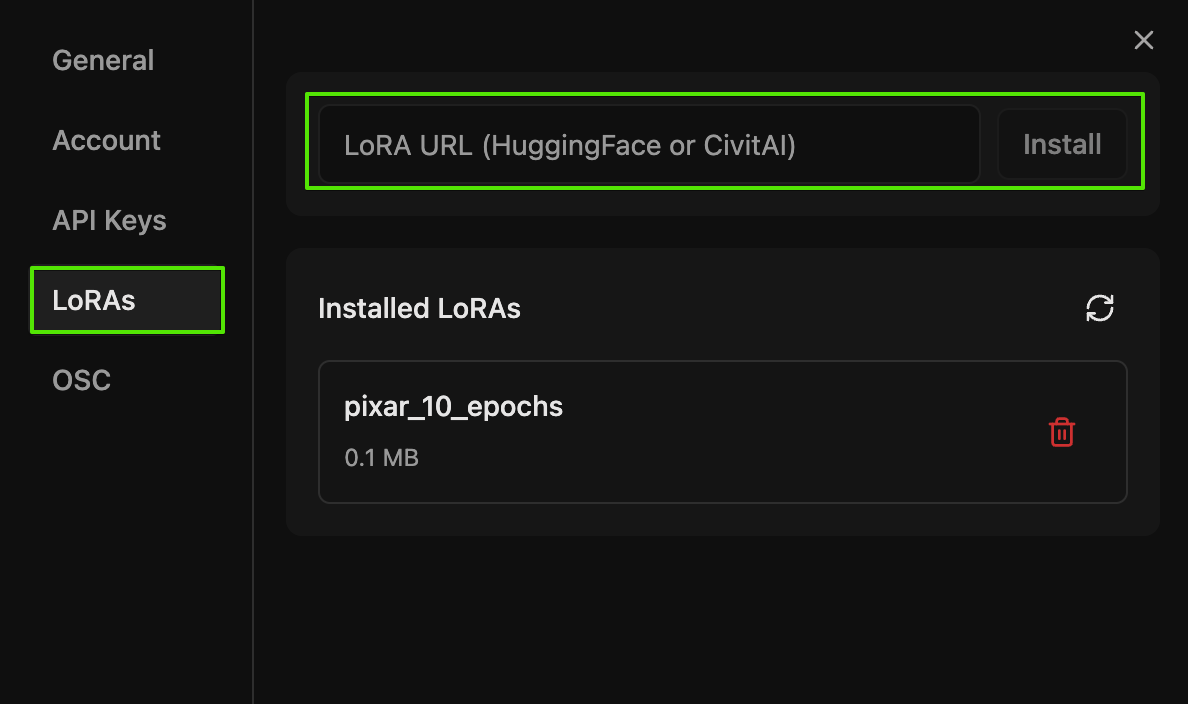 Some LoRAs on HuggingFace or CivitAI may require authentication. If a download fails, go to **Settings** > **API Keys** and add your HuggingFace token or CivitAI API key. You can generate these from your account settings on each platform.
### Managing installed LoRAs
The **Installed LoRAs** section in the LoRAs tab shows all your downloaded LoRA files with their file sizes. From here you can:
* **Delete** a LoRA by clicking the trash icon next to it
* **Refresh** the list with the refresh button if you added files manually
LoRA files are stored at `~/.daydream-scope/models/lora/` and grouped by folder in the list.
If you have terminal access to a GPU machine (for example on RunPod), you can also download LoRAs manually using `wget`.
### From HuggingFace
On the LoRA page, go to **Files and versions** and copy the link address for the `.safetensors` file.
Then download it to the LoRA folder:
```bash theme={null}
cd /workspace/models/lora
wget -O .safetensors ""
```
**Example:**
```bash theme={null}
wget -O pixar_10_epochs.safetensors "https://huggingface.co/Remade-AI/Pixar/resolve/main/pixar_10_epochs.safetensors?download=true"
```
On some RunPod templates, `wget` may not be pre-installed. If so, run `apt-get install wget` first.
### From CivitAI
CivitAI requires an API key for programmatic downloads.
1. Create an account at [civitai.com](https://civitai.com)
2. Go to [Developer Settings](https://developer.civitai.com/docs/getting-started/setup-profile)
3. Generate an API key
On the LoRA page, copy the download link address.
Then download with your API token:
```bash theme={null}
cd /workspace/models/lora
wget -O .safetensors "&token="
```
**Example:**
```bash theme={null}
wget -O arcane-jinx.safetensors "https://civitai.com/api/download/models/1679582?type=Model&format=SafeTensor&token=YOUR_API_KEY"
```
Make sure to wrap the URL in double quotes - the `&` character will cause issues otherwise.
***
## Configuring LoRAs
Once you have LoRAs installed, you can add them to your pipeline from the main interface. The LoRA Adapters dropdown shows LoRAs that have been installed through Settings or added manually to the `~/.daydream-scope/models/lora/` folder.
Some LoRAs on HuggingFace or CivitAI may require authentication. If a download fails, go to **Settings** > **API Keys** and add your HuggingFace token or CivitAI API key. You can generate these from your account settings on each platform.
### Managing installed LoRAs
The **Installed LoRAs** section in the LoRAs tab shows all your downloaded LoRA files with their file sizes. From here you can:
* **Delete** a LoRA by clicking the trash icon next to it
* **Refresh** the list with the refresh button if you added files manually
LoRA files are stored at `~/.daydream-scope/models/lora/` and grouped by folder in the list.
If you have terminal access to a GPU machine (for example on RunPod), you can also download LoRAs manually using `wget`.
### From HuggingFace
On the LoRA page, go to **Files and versions** and copy the link address for the `.safetensors` file.
Then download it to the LoRA folder:
```bash theme={null}
cd /workspace/models/lora
wget -O .safetensors ""
```
**Example:**
```bash theme={null}
wget -O pixar_10_epochs.safetensors "https://huggingface.co/Remade-AI/Pixar/resolve/main/pixar_10_epochs.safetensors?download=true"
```
On some RunPod templates, `wget` may not be pre-installed. If so, run `apt-get install wget` first.
### From CivitAI
CivitAI requires an API key for programmatic downloads.
1. Create an account at [civitai.com](https://civitai.com)
2. Go to [Developer Settings](https://developer.civitai.com/docs/getting-started/setup-profile)
3. Generate an API key
On the LoRA page, copy the download link address.
Then download with your API token:
```bash theme={null}
cd /workspace/models/lora
wget -O .safetensors "&token="
```
**Example:**
```bash theme={null}
wget -O arcane-jinx.safetensors "https://civitai.com/api/download/models/1679582?type=Model&format=SafeTensor&token=YOUR_API_KEY"
```
Make sure to wrap the URL in double quotes - the `&` character will cause issues otherwise.
***
## Configuring LoRAs
Once you have LoRAs installed, you can add them to your pipeline from the main interface. The LoRA Adapters dropdown shows LoRAs that have been installed through Settings or added manually to the `~/.daydream-scope/models/lora/` folder.
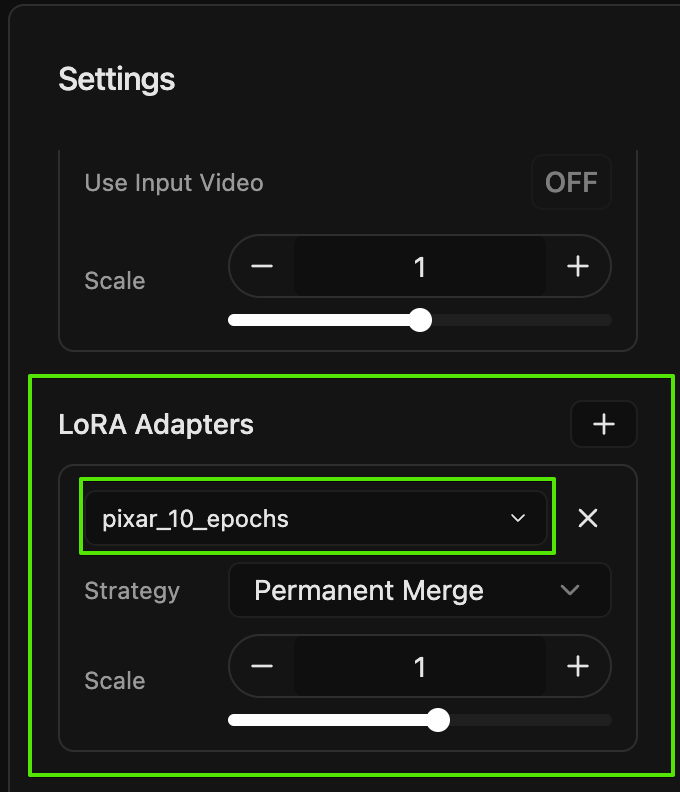 In the main Scope interface, find the **LoRA Adapters** section below the pipeline settings. If you don't see it, make sure your selected pipeline supports LoRAs (see the compatibility table above).
Click the **+** button to add a new LoRA slot. A dropdown will appear showing all your installed LoRA files. Select the one you want to use.
Each LoRA has a **Strategy** dropdown with two options:
| Strategy | Best for | Trade-off |
| ------------------- | ------------------------------------ | --------------------------------------------------------------------- |
| **Permanent merge** | Maximum FPS during generation | Scale is fixed at pipeline load and cannot be changed while streaming |
| **Runtime PEFT** | Real-time tweaking during generation | Scale adjustable at any time, but up to \~50% FPS overhead |
Use the **Scale** slider to control how much the LoRA affects your output. The range is -10 to +10, with 1.0 as the default. Higher values make the LoRA effect more pronounced.
You can add multiple LoRAs at the same time for combined effects. Click **+** again to add another slot.
Many LoRAs require a **trigger keyword** in your prompt to activate. Check the LoRA's model page (on HuggingFace or CivitAI) for the required trigger phrase and include it in your prompt. For example, the Pixar LoRA uses the trigger `p1x4r_5ty13 Pixar animation style`.
You cannot add, remove, or switch LoRAs while a stream is running. Stop the generation first, make your changes, then press Play again. If you're using the **Runtime PEFT** strategy, you can adjust the scale slider while streaming.
***
## Try community examples
Want to see LoRAs in action? Check out this walkthrough from the Community Hub:
Watch how a single LoRA transforms a puppy scene from photorealistic to Pixar animation style using the Krea Realtime pipeline, with downloadable timeline files
***
## Remote inference
LoRAs are fully supported with [Remote Inference](/scope/guides/remote-inference). When you install a LoRA while connected to a remote session, the file downloads directly to the cloud machine. Everything else works the same as local, including multiple LoRAs, scale adjustments, and merge strategies.
Learn how to run Scope on cloud-hosted GPUs without local hardware
***
## See also
Get Scope running if you haven't already
Use reference images to guide your generations
In the main Scope interface, find the **LoRA Adapters** section below the pipeline settings. If you don't see it, make sure your selected pipeline supports LoRAs (see the compatibility table above).
Click the **+** button to add a new LoRA slot. A dropdown will appear showing all your installed LoRA files. Select the one you want to use.
Each LoRA has a **Strategy** dropdown with two options:
| Strategy | Best for | Trade-off |
| ------------------- | ------------------------------------ | --------------------------------------------------------------------- |
| **Permanent merge** | Maximum FPS during generation | Scale is fixed at pipeline load and cannot be changed while streaming |
| **Runtime PEFT** | Real-time tweaking during generation | Scale adjustable at any time, but up to \~50% FPS overhead |
Use the **Scale** slider to control how much the LoRA affects your output. The range is -10 to +10, with 1.0 as the default. Higher values make the LoRA effect more pronounced.
You can add multiple LoRAs at the same time for combined effects. Click **+** again to add another slot.
Many LoRAs require a **trigger keyword** in your prompt to activate. Check the LoRA's model page (on HuggingFace or CivitAI) for the required trigger phrase and include it in your prompt. For example, the Pixar LoRA uses the trigger `p1x4r_5ty13 Pixar animation style`.
You cannot add, remove, or switch LoRAs while a stream is running. Stop the generation first, make your changes, then press Play again. If you're using the **Runtime PEFT** strategy, you can adjust the scale slider while streaming.
***
## Try community examples
Want to see LoRAs in action? Check out this walkthrough from the Community Hub:
Watch how a single LoRA transforms a puppy scene from photorealistic to Pixar animation style using the Krea Realtime pipeline, with downloadable timeline files
***
## Remote inference
LoRAs are fully supported with [Remote Inference](/scope/guides/remote-inference). When you install a LoRA while connected to a remote session, the file downloads directly to the cloud machine. Everything else works the same as local, including multiple LoRAs, scale adjustments, and merge strategies.
Learn how to run Scope on cloud-hosted GPUs without local hardware
***
## See also
Get Scope running if you haven't already
Use reference images to guide your generations