> ## Documentation Index
> Fetch the complete documentation index at: https://docs.daydream.live/llms.txt
> Use this file to discover all available pages before exploring further.
# Using OSC
> Control Scope and other visual software over OSC
# Controlling Scope and visual software over OSC
You want to control Daydream Scope and a second application (Resolume, TouchDesigner, or something else) from the same OSC source. Or maybe you want one app to control the other over OSC. Unlike MIDI, OSC is network-based and doesn't have the exclusive-device problem. But it has its own routing considerations, and the setup is different enough to warrant its own guide.
If you're looking for MIDI-specific setup with physical controllers, see the companion guide: [Using MIDI](/scope/guides/midi).
***
## Why OSC Instead of MIDI?
Both protocols map physical controls to software parameters, but they work differently under the hood.
| | MIDI | OSC |
| -------------- | ------------------------------------------ | -------------------------------------------------- |
| **Values** | Integers 0–127 | Floats, strings, ints, blobs |
| **Transport** | Device connection (USB) | UDP over network |
| **Multi-app** | Requires virtual routing | Send to multiple IP:port targets natively |
| **Mapping** | Learn-based (move a knob, app picks it up) | Explicit address paths (more setup, more flexible) |
| **Resolution** | 128 steps | Full float precision (0.0–1.0+) |
OSC gives you smoother fades, more granular control, and no device-exclusivity problems. The tradeoff is more explicit configuration.
***
## What You'll Need
* Daydream Scope installed and running (with OSC enabled)
* A second application: Resolume Arena/Avenue, TouchDesigner, or similar
* An OSC source: a tablet/phone app (TouchOSC, OSC/PILOT, Lemur), another piece of software, or a MIDI controller with an OSC bridge
* All devices on the same local network (or running on the same machine using `localhost`)
***
## How OSC Routing Works
Each application listens for OSC messages on a specific **UDP port** on a specific **network address** (`localhost` / `127.0.0.1` if everything is on the same machine, or a LAN IP if across machines). No two applications can listen on the same port on the same machine; they each need their own.
```text theme={null}
OSC Source (TouchOSC, OSC/PILOT, custom app, etc.)
│
Sends to two targets:
┌─────────────────┬─────────────────┐
▼ ▼
Scope Resolume / TouchDesigner
(localhost:8000) (localhost:7000)
```
Most OSC controller apps (TouchOSC, OSC/PILOT, Lemur) support multiple output targets natively. You configure each target as an IP address and port pair.
***
## Step 1: Enable OSC in Scope
Scope's OSC server is **always on**. It shares a UDP socket with the HTTP API on the same port — default `8000` — so as soon as Scope is running, OSC is reachable.
Open Scope and go to **Settings → OSC**. You'll see the listening host, port, and a live list of every exposed OSC path.
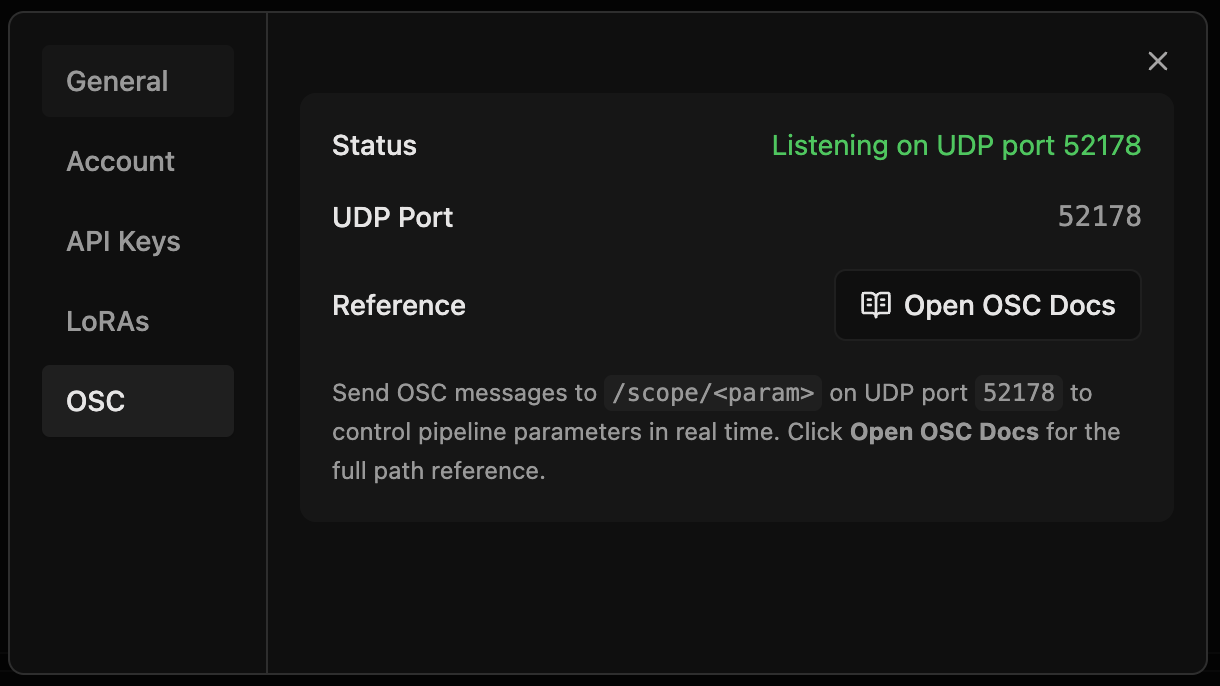 The default port is `8000`. To override it, set the `SCOPE_PORT` environment variable before launching Scope. UDP and HTTP coexist on the same port, so changing one changes both.
Click **Open OSC Docs** (or visit [`http://localhost:8000/api/v1/osc/docs`](http://localhost:8000/api/v1/osc/docs)) for an auto-generated reference page. Every path lists its address, type, range/enum constraints, default value, and a one-click Python snippet you can paste into TouchDesigner's text DAT.
The default port is `8000`. To override it, set the `SCOPE_PORT` environment variable before launching Scope. UDP and HTTP coexist on the same port, so changing one changes both.
Click **Open OSC Docs** (or visit [`http://localhost:8000/api/v1/osc/docs`](http://localhost:8000/api/v1/osc/docs)) for an auto-generated reference page. Every path lists its address, type, range/enum constraints, default value, and a one-click Python snippet you can paste into TouchDesigner's text DAT.
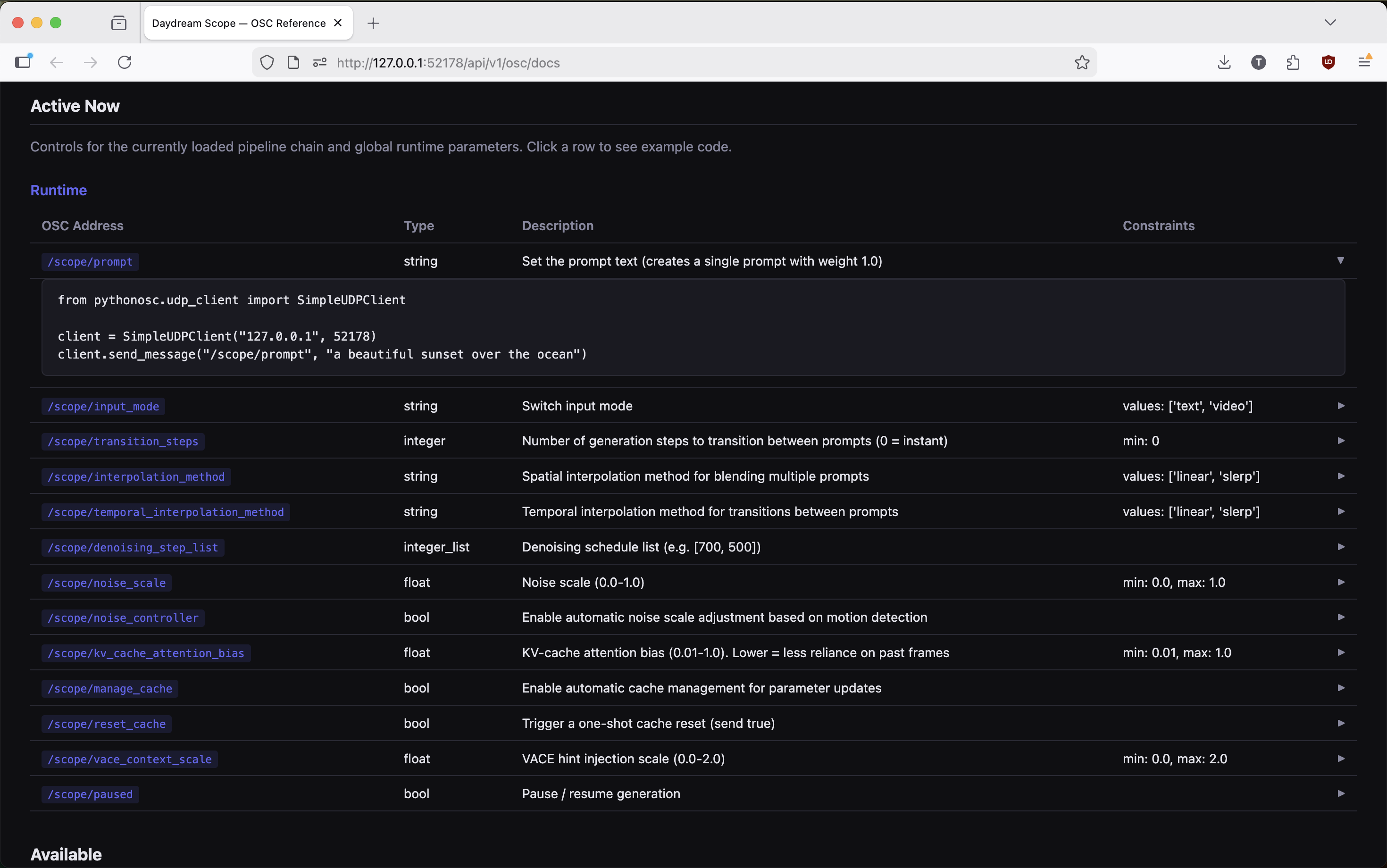 Enable **Settings → OSC → Log Messages** to see every received message — valid and invalid — in the Scope logs. Useful when debugging address typos or type mismatches.
### What's reachable via OSC
Scope publishes three layers of OSC paths:
| Layer | Source | Default address |
| --------------------------- | --------------------------------------------------------------------------------------------------------------------------- | ---------------------------------------------------------------------------------------------- |
| **Runtime globals** | Built-ins like `prompt`, `noise_scale`, `paused`, `manage_cache`, `reset_cache`, `transition_steps`, `interpolation_method` | `/scope/` |
| **Pipeline runtime params** | Each loaded pipeline's non-load fields (e.g. StreamDiffusion's `noise_scale`) | `/scope/` (legacy flat) or `/scope//` once you customize the pipeline node |
| **Graph nodes** | Source / Sink / Slider / XY Pad / Bool / Trigger / Tempo / Output / Note / Primitive nodes | `/scope//` (off by default; opt in per node) |
The graph-node layer is the new piece — sliders, XY pads, triggers, and the Source/Output nodes are now drivable over OSC, not just pipeline parameters.
***
## Step 2: Configure OSC per Node
Most graph nodes don't expose anything over OSC until you opt them in. The setup lives in the graph editor's right-click menu.
Right-click any node in the graph editor and pick **Configure OSC…**. The modal lists every OSC-eligible parameter for that node type.
Each row has an **Expose** checkbox. Tick it to publish that param's address. Pipeline-runtime params are already exposed at their legacy flat address (`/scope/prompt`, `/scope/noise_scale`, …) until you customize anything on that pipeline node.
The **Address** column auto-fills as `/scope//` (the slug is the node's display title in kebab-case). Override it to match an existing OSC layout — e.g. `/scope/tempo`, `/scope/main/prompt`, or any address your controller already sends.
The **Default** column is advisory metadata that Scope publishes in the OSC docs so external clients can mirror the starting state. It does **not** auto-apply on session start; defaults to the node's current value.
Hit **Save**. The graph re-publishes its OSC inventory to the backend within \~300ms and the new address is reachable immediately. The `oscConfig` is stored on the node and round-trips with graph save/export/import.
### What you can expose, by node type
| Node | Exposable params |
| --------- | --------------------------------------------------- |
| Source | `sourceMode` (enum), `sourceFlipVertical` (bool) |
| Output | `outputSinkEnabled` (bool), `outputSinkType` (enum) |
| Slider | `value` (float) |
| XY Pad | `padX`, `padY` (float) |
| Bool | `value` (bool) |
| Trigger | `value` (bool — send `true` to fire) |
| Tempo | `tempoBpm` (float, 20–999), `tempoEnabled` (bool) |
| Primitive | `value` (string) |
| Note | `noteText` (string) |
| Pipeline | every non-load field from the pipeline's schema |
Composite-shape params (knob arrays, MIDI channel arrays, tuple values) aren't exposed yet — they need a richer addressing scheme.
### Address format
```
/scope//
```
| Node title | Field | Default address |
| ---------------------- | ------------ | -------------------------- |
| `Tempo` (Slider) | `value` | `/scope/tempo/value` |
| `Source` | `sourceMode` | `/scope/source/sourceMode` |
| `Main` (Pipeline) | `prompt` | `/scope/main/prompt` |
| `Secondary` (Pipeline) | `prompt` | `/scope/secondary/prompt` |
If two nodes resolve to the same slug (two sliders both titled "Tempo"), the most recently saved one wins. Rename one or override the address explicitly to avoid collisions.
### Backwards compatibility
Pipeline runtime params keep their flat address `/scope/` until you open Configure OSC on the pipeline node and save any change. Existing rigs sending `/scope/prompt`, `/scope/noise_scale`, `/scope/paused`, etc. continue to work without graph-side configuration. The moment you opt a pipeline param in (or out) explicitly, the legacy flat alias is replaced by the namespaced address you chose — which is what lets you drive two pipeline instances independently when they share param names.
***
## Step 3: Discover Available Paths
Three ways to see what's reachable right now:
* **In-app:** Settings → OSC has a "Currently exposed paths" panel. Each row is click-to-copy.
* **HTML reference:** [`http://localhost:8000/api/v1/osc/docs`](http://localhost:8000/api/v1/osc/docs) — auto-generated table with addresses, types, ranges, defaults, and Python snippets.
* **Programmatic:** `curl -s http://localhost:8000/api/v1/osc/paths | jq` returns the JSON inventory, grouped into `active` (reachable now) and `available` (registered but not loaded yet).
***
## Step 4: Configure OSC in Your Second Application
### Resolume Arena/Avenue
Open **Preferences → OSC**. Note the **Input Port** (default is usually 7000).
Enable OSC input. This is the port your OSC source needs to target for Resolume.
To map a custom parameter: open the **Shortcuts** panel, select **OSC** as the protocol, click the parameter you want to map, then send an OSC message from your source. Resolume learns the address and binds it.
Resolume's OSC address structure follows a pattern: `/composition/layers/{layer}/clips/{clip}/connect` for triggering clips, `/composition/layers/{layer}/video/opacity` for layer opacity, and so on. Resolume can also **send** OSC for feedback to your controller or to drive another app.
### TouchDesigner
For TouchDesigner **receiving** OSC (e.g. from a controller):
Create an **OSC In CHOP** in your network.
Set the **Network Port** to TouchDesigner's listening port (e.g., 7000 — anything not already in use). Don't use Scope's port (`8000`); two apps can't listen on the same port on the same machine.
Incoming OSC messages appear as CHOP channels. Each unique address path becomes its own channel. Export channels to operator parameters (right-click → Export), or reference them with expressions like `op('oscinchop1')['address/path']`.
For sending OSC from TouchDesigner **to Scope**:
1. Create an **OSC Out CHOP** (or **OSC Out DAT** for strings).
2. Set the **Network Address** to `127.0.0.1` for same machine, or Scope's LAN IP across machines.
3. Set the **Network Port** to `8000` (or whatever `SCOPE_PORT` you configured).
4. Add a channel named after the address you want to drive — `/scope/prompt`, `/scope/noise_scale`, `/scope/tempo/value`, etc.
5. Animate or bind the channel value to your TD parameters.
Click any address row in `http://localhost:8000/api/v1/osc/docs` to copy a working Python snippet. Paste it into a TD **Text DAT** for offline testing before wiring up CHOPs.
**TouchDesigner as a control router** is a particularly useful pattern. Receive MIDI from a physical controller in TouchDesigner, process or remap the values, and forward them to Scope as OSC messages. This lets you use TouchDesigner as a flexible control routing layer with processing in between.
***
## Step 5: Configure Your OSC Source
### Tablet/Phone Apps (TouchOSC, OSC/PILOT, Lemur)
These apps let you define multiple output targets. Add one target per application:
* **Target 1:** Scope's IP and port (e.g., `192.168.1.100:8000` or `localhost:8000`)
* **Target 2:** Resolume's IP and port (e.g., `192.168.1.100:7000`)
Each control on your layout can send to a specific target, or you can have a single fader send to both.
### Another Application (e.g., TouchDesigner → Scope)
1. Create an **OSC Out CHOP** for each destination (or use a single OSC Out DAT with scripted message sending)
2. Set each one's network address and port to the corresponding target app
3. Wire your MIDI In CHOP (or any other data source) through any processing you need, then into the OSC Out
### MIDI Controller via Bridge
If you have a physical MIDI controller and want to convert its output to OSC:
* **OSC/PILOT** can receive MIDI and send OSC simultaneously
* **Open Stage Control** is a free, open-source option with MIDI-to-OSC bridging
* **TouchDesigner** itself is an excellent bridge: MIDI In CHOP → any processing → OSC Out CHOP
* A lightweight Python script using `mido` (MIDI) and `python-osc` (OSC) can do this in about 20 lines
***
## Step 6: Plan Your Address Space
Unlike MIDI (where you're mostly dealing with CC numbers 0–127 on channels 1–16), OSC gives you arbitrary string-based addressing. This is more powerful but requires some coordination.
OSC addresses are case-sensitive and must match exactly. A typo in an address path is the most common reason messages arrive but don't affect parameters.
A practical approach:
* Use each app's native OSC addresses where possible (Resolume and TouchDesigner both document theirs)
* For Scope, use the addresses listed at [`http://localhost:8000/api/v1/osc/docs`](http://localhost:8000/api/v1/osc/docs) — and override per-node addresses in **Configure OSC…** to match an existing layout instead of renaming controls on your tablet
* If you're building custom controls, namespace them: `/scope/prompt_strength`, `/resolume/layer1/opacity`, etc.
* If the same control should affect both apps, send the same message to both ports (your OSC source handles the fan-out)
For situations where you want a single fader to control different parameters in each app at different scales, put TouchDesigner or a similar tool in the middle. It receives one OSC message and outputs two different ones, each remapped for the target app's expected range and address.
### Validation
Scope validates every incoming message against the path's type and range before broadcasting. Invalid messages are logged but never reach the pipeline.
| Type | Accepts | Rejection example |
| ------------------ | -------------------------------------- | ------------------------------------------------------ |
| `float` / `number` | `int` or `float` | string → "type mismatch" |
| `integer` | `int` | float → "type mismatch" |
| `bool` / `boolean` | `bool` / `int` / `float` (truthy = on) | string → "type mismatch" |
| `string` | `str` | int → "type mismatch" |
| `integer_list` | non-empty list of ints | list with non-ints → "type mismatch: item N of type …" |
Out-of-range numeric values are rejected with `"value X below minimum Y"` / `"above maximum Y"`. Enum-violating strings get `"value 'foo' not in allowed values […]"`. Toggle **Settings → OSC → Log Messages** to see all messages (valid + invalid) in the Scope logs.
***
## Step 7: Connect the Video Pipeline
Same as the MIDI guide: Scope outputs video via Spout (Windows), Syphon (macOS), or NDI (network). This is independent of your control protocol.
* **Same machine:** [Spout](/scope/guides/spout) or Syphon. Sources appear automatically in Resolume and TouchDesigner
* **Across machines:** NDI. Sources appear automatically on the same network
***
## Routing OSC to Multiple Apps from a Single-Target Source
If your OSC source only supports one output target, you need a relay to fan out the messages:
* **TouchDesigner:** Set it as the sole OSC target, then use multiple OSC Out CHOPs to forward messages to each destination app. This also lets you filter or transform messages per-destination
* **Open Stage Control:** Acts as a relay with customizable routing rules
* **oscrouter / osc-splitter utilities:** Small standalone tools that listen on one port and forward to multiple destinations
* **Custom script:** A Python script with `python-osc` can listen on one port and forward every message to N destinations in about 15 lines
***
## Troubleshooting
Check that the target port matches the app's listening port. Verify the app is actually listening (Scope: hit `http://localhost:8000/api/v1/osc/status`; TouchDesigner: check the OSC In CHOP's node viewer; Resolume: check the MIDI/OSC monitor in preferences). Make sure your firewall isn't blocking UDP on that port.
Two apps can't listen on the same port. Give each app its own port and configure your source accordingly. For Scope, set `SCOPE_PORT` before launching to move both UDP and HTTP off the default `8000`.
The address path probably doesn't match what's exposed. OSC addresses are case-sensitive and must match exactly. Check [`http://localhost:8000/api/v1/osc/docs`](http://localhost:8000/api/v1/osc/docs) for the live list of Scope addresses, and turn on **Settings → OSC → Log Messages** to see exactly what's arriving — Scope logs both valid messages and rejection reasons (type mismatch, out-of-range, unknown address).
Slug collisions: two nodes whose titles slugify to the same value (e.g. two sliders both titled "Tempo") fight for the same address; the most recently saved one wins. Rename one node, or open **Configure OSC…** on one of them and set an explicit address.
Verify both machines are on the same subnet. Replace `localhost` / `127.0.0.1` with the target machine's actual LAN IP. Check firewalls on both ends.
OSC over UDP doesn't guarantee delivery. On a clean local network this is rarely an issue, but WiFi can introduce drops. If you're controlling from a tablet over WiFi and seeing inconsistency, try a wired connection or reduce your message rate.
***
## The General Pattern
The architecture for multi-app OSC control:
1. **Each app gets its own UDP port** on the network. No sharing, no conflicts
2. **Your OSC source sends to multiple targets** (most controller apps support this natively)
3. **Address paths are per-app** — coordinate your namespace so messages go where you intend
4. **Use a relay** (TouchDesigner, Open Stage Control, or a script) when your source only supports one target, or when you need to transform messages per-destination
5. **Video pipeline** (Spout/Syphon/NDI) is separate from the control protocol and works the same regardless of whether you're using MIDI, OSC, or both
***
## See Also
Control Scope and other visual software from a single MIDI controller
Control Scope from lighting consoles via Art-Net DMX
Share real-time video between Scope and other applications on Windows
Enable **Settings → OSC → Log Messages** to see every received message — valid and invalid — in the Scope logs. Useful when debugging address typos or type mismatches.
### What's reachable via OSC
Scope publishes three layers of OSC paths:
| Layer | Source | Default address |
| --------------------------- | --------------------------------------------------------------------------------------------------------------------------- | ---------------------------------------------------------------------------------------------- |
| **Runtime globals** | Built-ins like `prompt`, `noise_scale`, `paused`, `manage_cache`, `reset_cache`, `transition_steps`, `interpolation_method` | `/scope/` |
| **Pipeline runtime params** | Each loaded pipeline's non-load fields (e.g. StreamDiffusion's `noise_scale`) | `/scope/` (legacy flat) or `/scope//` once you customize the pipeline node |
| **Graph nodes** | Source / Sink / Slider / XY Pad / Bool / Trigger / Tempo / Output / Note / Primitive nodes | `/scope//` (off by default; opt in per node) |
The graph-node layer is the new piece — sliders, XY pads, triggers, and the Source/Output nodes are now drivable over OSC, not just pipeline parameters.
***
## Step 2: Configure OSC per Node
Most graph nodes don't expose anything over OSC until you opt them in. The setup lives in the graph editor's right-click menu.
Right-click any node in the graph editor and pick **Configure OSC…**. The modal lists every OSC-eligible parameter for that node type.
Each row has an **Expose** checkbox. Tick it to publish that param's address. Pipeline-runtime params are already exposed at their legacy flat address (`/scope/prompt`, `/scope/noise_scale`, …) until you customize anything on that pipeline node.
The **Address** column auto-fills as `/scope//` (the slug is the node's display title in kebab-case). Override it to match an existing OSC layout — e.g. `/scope/tempo`, `/scope/main/prompt`, or any address your controller already sends.
The **Default** column is advisory metadata that Scope publishes in the OSC docs so external clients can mirror the starting state. It does **not** auto-apply on session start; defaults to the node's current value.
Hit **Save**. The graph re-publishes its OSC inventory to the backend within \~300ms and the new address is reachable immediately. The `oscConfig` is stored on the node and round-trips with graph save/export/import.
### What you can expose, by node type
| Node | Exposable params |
| --------- | --------------------------------------------------- |
| Source | `sourceMode` (enum), `sourceFlipVertical` (bool) |
| Output | `outputSinkEnabled` (bool), `outputSinkType` (enum) |
| Slider | `value` (float) |
| XY Pad | `padX`, `padY` (float) |
| Bool | `value` (bool) |
| Trigger | `value` (bool — send `true` to fire) |
| Tempo | `tempoBpm` (float, 20–999), `tempoEnabled` (bool) |
| Primitive | `value` (string) |
| Note | `noteText` (string) |
| Pipeline | every non-load field from the pipeline's schema |
Composite-shape params (knob arrays, MIDI channel arrays, tuple values) aren't exposed yet — they need a richer addressing scheme.
### Address format
```
/scope//
```
| Node title | Field | Default address |
| ---------------------- | ------------ | -------------------------- |
| `Tempo` (Slider) | `value` | `/scope/tempo/value` |
| `Source` | `sourceMode` | `/scope/source/sourceMode` |
| `Main` (Pipeline) | `prompt` | `/scope/main/prompt` |
| `Secondary` (Pipeline) | `prompt` | `/scope/secondary/prompt` |
If two nodes resolve to the same slug (two sliders both titled "Tempo"), the most recently saved one wins. Rename one or override the address explicitly to avoid collisions.
### Backwards compatibility
Pipeline runtime params keep their flat address `/scope/` until you open Configure OSC on the pipeline node and save any change. Existing rigs sending `/scope/prompt`, `/scope/noise_scale`, `/scope/paused`, etc. continue to work without graph-side configuration. The moment you opt a pipeline param in (or out) explicitly, the legacy flat alias is replaced by the namespaced address you chose — which is what lets you drive two pipeline instances independently when they share param names.
***
## Step 3: Discover Available Paths
Three ways to see what's reachable right now:
* **In-app:** Settings → OSC has a "Currently exposed paths" panel. Each row is click-to-copy.
* **HTML reference:** [`http://localhost:8000/api/v1/osc/docs`](http://localhost:8000/api/v1/osc/docs) — auto-generated table with addresses, types, ranges, defaults, and Python snippets.
* **Programmatic:** `curl -s http://localhost:8000/api/v1/osc/paths | jq` returns the JSON inventory, grouped into `active` (reachable now) and `available` (registered but not loaded yet).
***
## Step 4: Configure OSC in Your Second Application
### Resolume Arena/Avenue
Open **Preferences → OSC**. Note the **Input Port** (default is usually 7000).
Enable OSC input. This is the port your OSC source needs to target for Resolume.
To map a custom parameter: open the **Shortcuts** panel, select **OSC** as the protocol, click the parameter you want to map, then send an OSC message from your source. Resolume learns the address and binds it.
Resolume's OSC address structure follows a pattern: `/composition/layers/{layer}/clips/{clip}/connect` for triggering clips, `/composition/layers/{layer}/video/opacity` for layer opacity, and so on. Resolume can also **send** OSC for feedback to your controller or to drive another app.
### TouchDesigner
For TouchDesigner **receiving** OSC (e.g. from a controller):
Create an **OSC In CHOP** in your network.
Set the **Network Port** to TouchDesigner's listening port (e.g., 7000 — anything not already in use). Don't use Scope's port (`8000`); two apps can't listen on the same port on the same machine.
Incoming OSC messages appear as CHOP channels. Each unique address path becomes its own channel. Export channels to operator parameters (right-click → Export), or reference them with expressions like `op('oscinchop1')['address/path']`.
For sending OSC from TouchDesigner **to Scope**:
1. Create an **OSC Out CHOP** (or **OSC Out DAT** for strings).
2. Set the **Network Address** to `127.0.0.1` for same machine, or Scope's LAN IP across machines.
3. Set the **Network Port** to `8000` (or whatever `SCOPE_PORT` you configured).
4. Add a channel named after the address you want to drive — `/scope/prompt`, `/scope/noise_scale`, `/scope/tempo/value`, etc.
5. Animate or bind the channel value to your TD parameters.
Click any address row in `http://localhost:8000/api/v1/osc/docs` to copy a working Python snippet. Paste it into a TD **Text DAT** for offline testing before wiring up CHOPs.
**TouchDesigner as a control router** is a particularly useful pattern. Receive MIDI from a physical controller in TouchDesigner, process or remap the values, and forward them to Scope as OSC messages. This lets you use TouchDesigner as a flexible control routing layer with processing in between.
***
## Step 5: Configure Your OSC Source
### Tablet/Phone Apps (TouchOSC, OSC/PILOT, Lemur)
These apps let you define multiple output targets. Add one target per application:
* **Target 1:** Scope's IP and port (e.g., `192.168.1.100:8000` or `localhost:8000`)
* **Target 2:** Resolume's IP and port (e.g., `192.168.1.100:7000`)
Each control on your layout can send to a specific target, or you can have a single fader send to both.
### Another Application (e.g., TouchDesigner → Scope)
1. Create an **OSC Out CHOP** for each destination (or use a single OSC Out DAT with scripted message sending)
2. Set each one's network address and port to the corresponding target app
3. Wire your MIDI In CHOP (or any other data source) through any processing you need, then into the OSC Out
### MIDI Controller via Bridge
If you have a physical MIDI controller and want to convert its output to OSC:
* **OSC/PILOT** can receive MIDI and send OSC simultaneously
* **Open Stage Control** is a free, open-source option with MIDI-to-OSC bridging
* **TouchDesigner** itself is an excellent bridge: MIDI In CHOP → any processing → OSC Out CHOP
* A lightweight Python script using `mido` (MIDI) and `python-osc` (OSC) can do this in about 20 lines
***
## Step 6: Plan Your Address Space
Unlike MIDI (where you're mostly dealing with CC numbers 0–127 on channels 1–16), OSC gives you arbitrary string-based addressing. This is more powerful but requires some coordination.
OSC addresses are case-sensitive and must match exactly. A typo in an address path is the most common reason messages arrive but don't affect parameters.
A practical approach:
* Use each app's native OSC addresses where possible (Resolume and TouchDesigner both document theirs)
* For Scope, use the addresses listed at [`http://localhost:8000/api/v1/osc/docs`](http://localhost:8000/api/v1/osc/docs) — and override per-node addresses in **Configure OSC…** to match an existing layout instead of renaming controls on your tablet
* If you're building custom controls, namespace them: `/scope/prompt_strength`, `/resolume/layer1/opacity`, etc.
* If the same control should affect both apps, send the same message to both ports (your OSC source handles the fan-out)
For situations where you want a single fader to control different parameters in each app at different scales, put TouchDesigner or a similar tool in the middle. It receives one OSC message and outputs two different ones, each remapped for the target app's expected range and address.
### Validation
Scope validates every incoming message against the path's type and range before broadcasting. Invalid messages are logged but never reach the pipeline.
| Type | Accepts | Rejection example |
| ------------------ | -------------------------------------- | ------------------------------------------------------ |
| `float` / `number` | `int` or `float` | string → "type mismatch" |
| `integer` | `int` | float → "type mismatch" |
| `bool` / `boolean` | `bool` / `int` / `float` (truthy = on) | string → "type mismatch" |
| `string` | `str` | int → "type mismatch" |
| `integer_list` | non-empty list of ints | list with non-ints → "type mismatch: item N of type …" |
Out-of-range numeric values are rejected with `"value X below minimum Y"` / `"above maximum Y"`. Enum-violating strings get `"value 'foo' not in allowed values […]"`. Toggle **Settings → OSC → Log Messages** to see all messages (valid + invalid) in the Scope logs.
***
## Step 7: Connect the Video Pipeline
Same as the MIDI guide: Scope outputs video via Spout (Windows), Syphon (macOS), or NDI (network). This is independent of your control protocol.
* **Same machine:** [Spout](/scope/guides/spout) or Syphon. Sources appear automatically in Resolume and TouchDesigner
* **Across machines:** NDI. Sources appear automatically on the same network
***
## Routing OSC to Multiple Apps from a Single-Target Source
If your OSC source only supports one output target, you need a relay to fan out the messages:
* **TouchDesigner:** Set it as the sole OSC target, then use multiple OSC Out CHOPs to forward messages to each destination app. This also lets you filter or transform messages per-destination
* **Open Stage Control:** Acts as a relay with customizable routing rules
* **oscrouter / osc-splitter utilities:** Small standalone tools that listen on one port and forward to multiple destinations
* **Custom script:** A Python script with `python-osc` can listen on one port and forward every message to N destinations in about 15 lines
***
## Troubleshooting
Check that the target port matches the app's listening port. Verify the app is actually listening (Scope: hit `http://localhost:8000/api/v1/osc/status`; TouchDesigner: check the OSC In CHOP's node viewer; Resolume: check the MIDI/OSC monitor in preferences). Make sure your firewall isn't blocking UDP on that port.
Two apps can't listen on the same port. Give each app its own port and configure your source accordingly. For Scope, set `SCOPE_PORT` before launching to move both UDP and HTTP off the default `8000`.
The address path probably doesn't match what's exposed. OSC addresses are case-sensitive and must match exactly. Check [`http://localhost:8000/api/v1/osc/docs`](http://localhost:8000/api/v1/osc/docs) for the live list of Scope addresses, and turn on **Settings → OSC → Log Messages** to see exactly what's arriving — Scope logs both valid messages and rejection reasons (type mismatch, out-of-range, unknown address).
Slug collisions: two nodes whose titles slugify to the same value (e.g. two sliders both titled "Tempo") fight for the same address; the most recently saved one wins. Rename one node, or open **Configure OSC…** on one of them and set an explicit address.
Verify both machines are on the same subnet. Replace `localhost` / `127.0.0.1` with the target machine's actual LAN IP. Check firewalls on both ends.
OSC over UDP doesn't guarantee delivery. On a clean local network this is rarely an issue, but WiFi can introduce drops. If you're controlling from a tablet over WiFi and seeing inconsistency, try a wired connection or reduce your message rate.
***
## The General Pattern
The architecture for multi-app OSC control:
1. **Each app gets its own UDP port** on the network. No sharing, no conflicts
2. **Your OSC source sends to multiple targets** (most controller apps support this natively)
3. **Address paths are per-app** — coordinate your namespace so messages go where you intend
4. **Use a relay** (TouchDesigner, Open Stage Control, or a script) when your source only supports one target, or when you need to transform messages per-destination
5. **Video pipeline** (Spout/Syphon/NDI) is separate from the control protocol and works the same regardless of whether you're using MIDI, OSC, or both
***
## See Also
Control Scope and other visual software from a single MIDI controller
Control Scope from lighting consoles via Art-Net DMX
Share real-time video between Scope and other applications on Windows