> ## Documentation Index
> Fetch the complete documentation index at: https://docs.daydream.live/llms.txt
> Use this file to discover all available pages before exploring further.
# Remote Inference
> Run Scope pipelines on cloud-hosted GPUs without local hardware
# Remote Inference (Beta)
Remote Inference is currently in **beta**. The feature is free during the beta period, but functionality, availability, and pricing are subject to change.
The Remote Inference feature enables you to run Scope pipelines on cloud-hosted H100 GPUs provided by Daydream, eliminating the need for local GPU hardware. This means **Mac users** and anyone without a dedicated NVIDIA card can use Scope.
On Windows, only the **x64** version is supported - ARM-based Windows (e.g. Snapdragon laptops) is not supported at this time.
***
## Setup
You must sign in from **within the Scope desktop app** - not from the Daydream website. The sign-in option is located in the app's Account settings as described below.
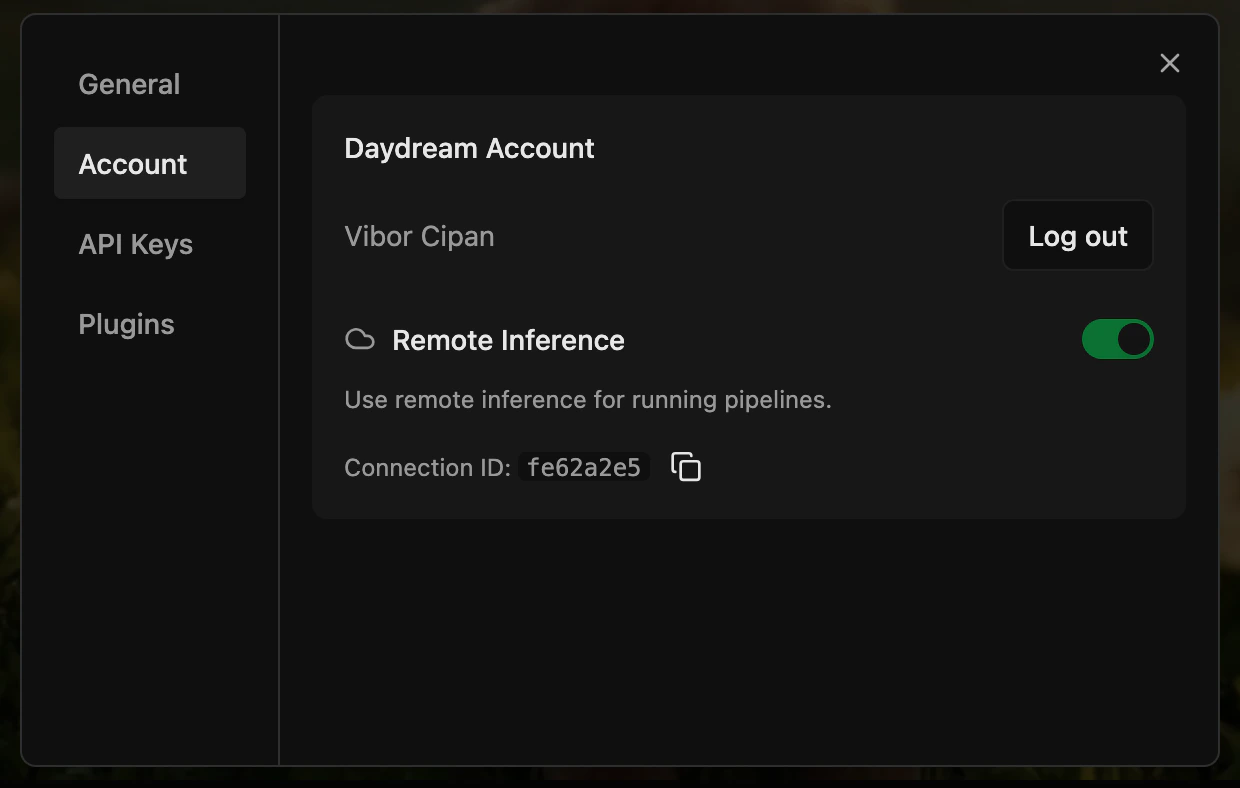
Launch the Scope app and navigate to **Settings** (gear icon, top-right) → **Account**.
In the Account panel, select **Sign in with Daydream**. A browser window will open for authentication — once complete, you'll be returned to the app.
After signing in, enable the **Remote Inference** toggle.
Select your desired pipeline and press **Play**.
Once setup is complete, your Account settings should look like this:
 ***
## Supported Features
Remote Inference has **full feature parity** with local Scope — everything you can do locally works in the cloud:
* **All pipelines** — Every pipeline available locally works remotely on H100 GPUs, including [LTX 2.3](/scope/guides/ltx-2-3) which is pre-bundled in the cloud image (no plugin install needed)
* **[LoRAs](/scope/guides/loras)** — Load LoRAs from CivitAI or Hugging Face; adjust strength in real-time
* **[Nodes](/scope/guides/plugins)** — Install and use community nodes (remote-approved nodes only)
* **[Workflows](/scope/guides/workflows)** — Import, export, and share workflows with full dependency resolution
* **Control interfaces** — OSC, MIDI, DMX, and other control protocols work as expected
* **Output interfaces** — Spout, Syphon, NDI, and other output protocols are fully supported
When loading a workflow with LoRAs or nodes, the remote server automatically downloads and installs all dependencies. This may add 1-2 minutes to startup time.
***
## Usage Details
* **Session duration** - Each session provides up to 1 hour of GPU access. Upon disconnection, you may reconnect immediately to begin a new session. There is no charge and no limit on the number of sessions during the beta period.
* **Startup time** - Please allow approximately 2-3 minutes for the remote GPU to provision, followed by an additional 1-2 minutes for the selected pipeline to initialize and begin producing output.
***
## Known Limitations
These limitations are specific to the beta and may be resolved in future releases.
* **[Krea Realtime](/scope/reference/pipelines/krea-realtime) pipeline switching requires an application restart** - to switch to `krea-realtime-video` from another pipeline, close the application, relaunch it, enable the Remote Inference toggle in the settings panel, select the Krea pipeline, and press Play.
***
## Troubleshooting
If you run into issues while using Remote Inference, Scope's built-in log panel and bug reporter can help you capture what went wrong and share it with us.
Learn how to use the log panel, copy logs, and submit a bug report on GitHub
***
## Supported Features
Remote Inference has **full feature parity** with local Scope — everything you can do locally works in the cloud:
* **All pipelines** — Every pipeline available locally works remotely on H100 GPUs, including [LTX 2.3](/scope/guides/ltx-2-3) which is pre-bundled in the cloud image (no plugin install needed)
* **[LoRAs](/scope/guides/loras)** — Load LoRAs from CivitAI or Hugging Face; adjust strength in real-time
* **[Nodes](/scope/guides/plugins)** — Install and use community nodes (remote-approved nodes only)
* **[Workflows](/scope/guides/workflows)** — Import, export, and share workflows with full dependency resolution
* **Control interfaces** — OSC, MIDI, DMX, and other control protocols work as expected
* **Output interfaces** — Spout, Syphon, NDI, and other output protocols are fully supported
When loading a workflow with LoRAs or nodes, the remote server automatically downloads and installs all dependencies. This may add 1-2 minutes to startup time.
***
## Usage Details
* **Session duration** - Each session provides up to 1 hour of GPU access. Upon disconnection, you may reconnect immediately to begin a new session. There is no charge and no limit on the number of sessions during the beta period.
* **Startup time** - Please allow approximately 2-3 minutes for the remote GPU to provision, followed by an additional 1-2 minutes for the selected pipeline to initialize and begin producing output.
***
## Known Limitations
These limitations are specific to the beta and may be resolved in future releases.
* **[Krea Realtime](/scope/reference/pipelines/krea-realtime) pipeline switching requires an application restart** - to switch to `krea-realtime-video` from another pipeline, close the application, relaunch it, enable the Remote Inference toggle in the settings panel, select the Krea pipeline, and press Play.
***
## Troubleshooting
If you run into issues while using Remote Inference, Scope's built-in log panel and bug reporter can help you capture what went wrong and share it with us.
Learn how to use the log panel, copy logs, and submit a bug report on GitHub