> ## Documentation Index
> Fetch the complete documentation index at: https://docs.daydream.live/llms.txt
> Use this file to discover all available pages before exploring further.
# Using Spout
> Share real-time video with other applications on Windows
# Sharing real-time video between Windows applications with Spout
Scope supports near-zero latency video sharing with other local applications on Windows via [Spout](https://spout.zeal.co/). This enables powerful workflows like sending Scope's output to TouchDesigner, Unity, or Blender in real-time.
**Windows only.** The Scope server must be running on a Windows machine to use Spout. Spout is not available on Linux (including RunPod) or WSL. If you are on macOS, see the [Syphon guide](/scope/guides/syphon) instead.
***
## What is Spout?
Spout is a real-time video sharing framework for Windows that allows applications to share GPU textures with minimal overhead. Unlike screen capture or video streaming, Spout shares frames directly through GPU memory, resulting in:
* **Near-zero latency** - Frames are available instantly
* **Full quality** - No compression artifacts
* **Minimal CPU overhead** - All processing stays on the GPU
***
## Spout Receiver
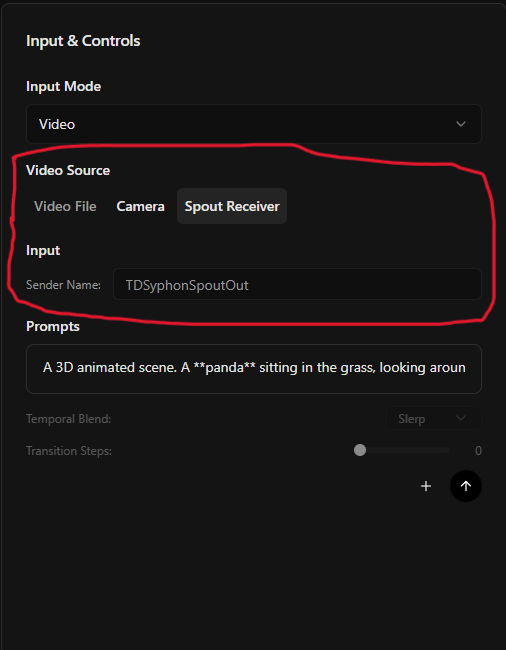
Configure Scope to receive video from other applications via Spout. This is useful for using external video sources (like TouchDesigner or OBS) as input for your generations.
Under **Input & Controls**, set **Input Mode** to **Video**.
Set **Video Source** to **Spout Receiver**.
The **Sender Name** field can be:
* **Empty** - Receive from any available Spout sender
* **Specific name** - Receive only from a sender with that exact name
 ***
## Spout Sender
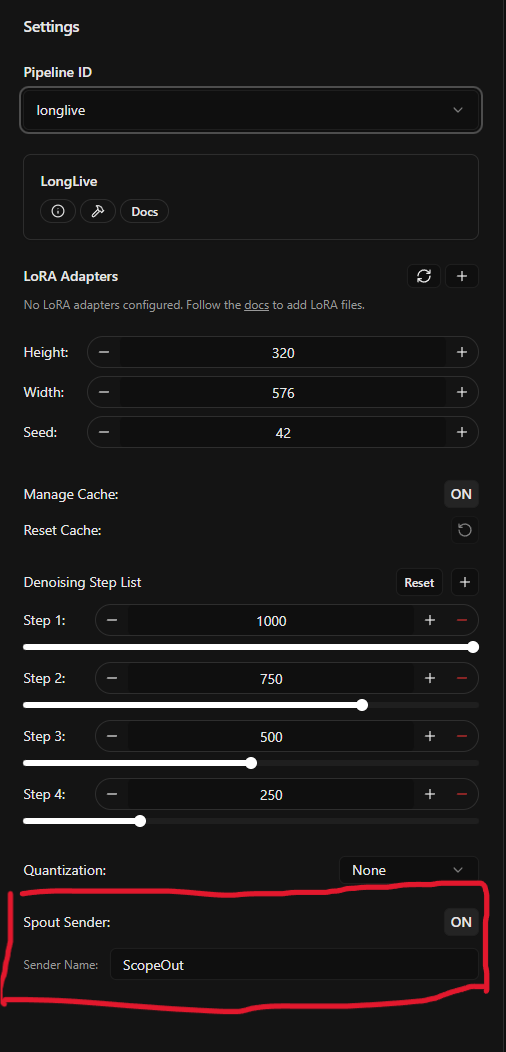
Configure Scope to send its output to other applications via Spout. This is useful for post-processing in TouchDesigner, recording in OBS, or using Scope's output in Unity/Unreal projects.
Click the **Settings** panel in the Scope interface.
Toggle **Spout Sender** to **On**.
The default sender name is `ScopeOut`. You can change this if you need to identify multiple Scope instances.
***
## Spout Sender
Configure Scope to send its output to other applications via Spout. This is useful for post-processing in TouchDesigner, recording in OBS, or using Scope's output in Unity/Unreal projects.
Click the **Settings** panel in the Scope interface.
Toggle **Spout Sender** to **On**.
The default sender name is `ScopeOut`. You can change this if you need to identify multiple Scope instances.
 ***
## Compatible Applications
Scope can share real-time video with any application that supports Spout. The following applications have been tested:
Use [Syphon Spout In](https://derivative.ca/UserGuide/Syphon_Spout_In_TOP) and [Syphon Spout Out](https://docs.derivative.ca/Syphon_Spout_Out_TOP) TOPs
Built-in Spout input/output
With the [Spout2 plugin](https://github.com/Off-World-Live/obs-spout2-plugin)
Use the [KlakSpout plugin](https://github.com/keijiro/KlakSpout)
Use the [TextureSharing add-on](https://github.com/maybites/TextureSharing)
Any application that supports Spout should work with Scope. Check your application's documentation for Spout integration instructions.
***
## Example: TouchDesigner Integration
This example shows Scope sending real-time AI video to TouchDesigner for further processing and output.
### Basic Setup
1. In Scope, enable **Spout Sender** with name `ScopeOut`
2. In TouchDesigner, add a **Syphon Spout In** TOP
3. Set the source to `ScopeOut`
4. The AI-generated video now flows into your TouchDesigner network
### Use Cases
Use TouchDesigner to mix Scope's output with other visuals, apply effects, and output to projectors or LED walls
Combine Scope with TouchDesigner's sensor inputs for reactive AI art
Route Scope through TouchDesigner to NDI or SDI for live broadcast
Use Unity or Unreal to incorporate real-time AI video into game environments
***
## Troubleshooting
* Verify Spout Sender is enabled in Scope settings
* Make sure both applications are running on the same Windows machine
* Try restarting the receiving application after enabling Spout in Scope
* Verify the sending application has Spout output enabled
* Check that the sender name matches (or leave empty to receive from any sender)
* Ensure both applications are using the same Spout version
* Spout sharing is GPU-memory based and should have minimal overhead
* If you see frame drops, check GPU memory usage - you may need to reduce resolution
* Close other GPU-intensive applications if VRAM is limited
***
## See Also
The macOS equivalent of Spout for sharing real-time video between applications
Send and receive real-time video over the network across machines
Get Scope running if you haven't already
Use reference images and control videos with Spout input
***
## Compatible Applications
Scope can share real-time video with any application that supports Spout. The following applications have been tested:
Use [Syphon Spout In](https://derivative.ca/UserGuide/Syphon_Spout_In_TOP) and [Syphon Spout Out](https://docs.derivative.ca/Syphon_Spout_Out_TOP) TOPs
Built-in Spout input/output
With the [Spout2 plugin](https://github.com/Off-World-Live/obs-spout2-plugin)
Use the [KlakSpout plugin](https://github.com/keijiro/KlakSpout)
Use the [TextureSharing add-on](https://github.com/maybites/TextureSharing)
Any application that supports Spout should work with Scope. Check your application's documentation for Spout integration instructions.
***
## Example: TouchDesigner Integration
This example shows Scope sending real-time AI video to TouchDesigner for further processing and output.
### Basic Setup
1. In Scope, enable **Spout Sender** with name `ScopeOut`
2. In TouchDesigner, add a **Syphon Spout In** TOP
3. Set the source to `ScopeOut`
4. The AI-generated video now flows into your TouchDesigner network
### Use Cases
Use TouchDesigner to mix Scope's output with other visuals, apply effects, and output to projectors or LED walls
Combine Scope with TouchDesigner's sensor inputs for reactive AI art
Route Scope through TouchDesigner to NDI or SDI for live broadcast
Use Unity or Unreal to incorporate real-time AI video into game environments
***
## Troubleshooting
* Verify Spout Sender is enabled in Scope settings
* Make sure both applications are running on the same Windows machine
* Try restarting the receiving application after enabling Spout in Scope
* Verify the sending application has Spout output enabled
* Check that the sender name matches (or leave empty to receive from any sender)
* Ensure both applications are using the same Spout version
* Spout sharing is GPU-memory based and should have minimal overhead
* If you see frame drops, check GPU memory usage - you may need to reduce resolution
* Close other GPU-intensive applications if VRAM is limited
***
## See Also
The macOS equivalent of Spout for sharing real-time video between applications
Send and receive real-time video over the network across machines
Get Scope running if you haven't already
Use reference images and control videos with Spout input