> ## Documentation Index
> Fetch the complete documentation index at: https://docs.daydream.live/llms.txt
> Use this file to discover all available pages before exploring further.
# Installation
> Install the Daydream OBS plugin for AI video effects
# OBS Plugin Installation
Add real-time AI video effects to your OBS streams.
 ## Requirements
| Platform | Version |
| ---------- | --------------------------- |
| OBS Studio | 31.1 or later |
| macOS | 12.0 (Monterey) or later |
| Windows | 10 or later |
| Linux | Ubuntu 20.04+ or equivalent |
You'll also need a [Daydream account](https://daydream.live).
## Installation
1. Download the latest release from [GitHub Releases](https://github.com/daydreamlive/daydream-obs/releases)
2. Install the plugin:
* **macOS**: Double-click the `.pkg` installer
* **Windows**: Run the `.exe` installer
* **Linux**: Extract to `~/.config/obs-studio/plugins/`
3. Restart OBS Studio
When upgrading the plugin, remove the Daydream filter and re-add it after installation.
## Quick Start
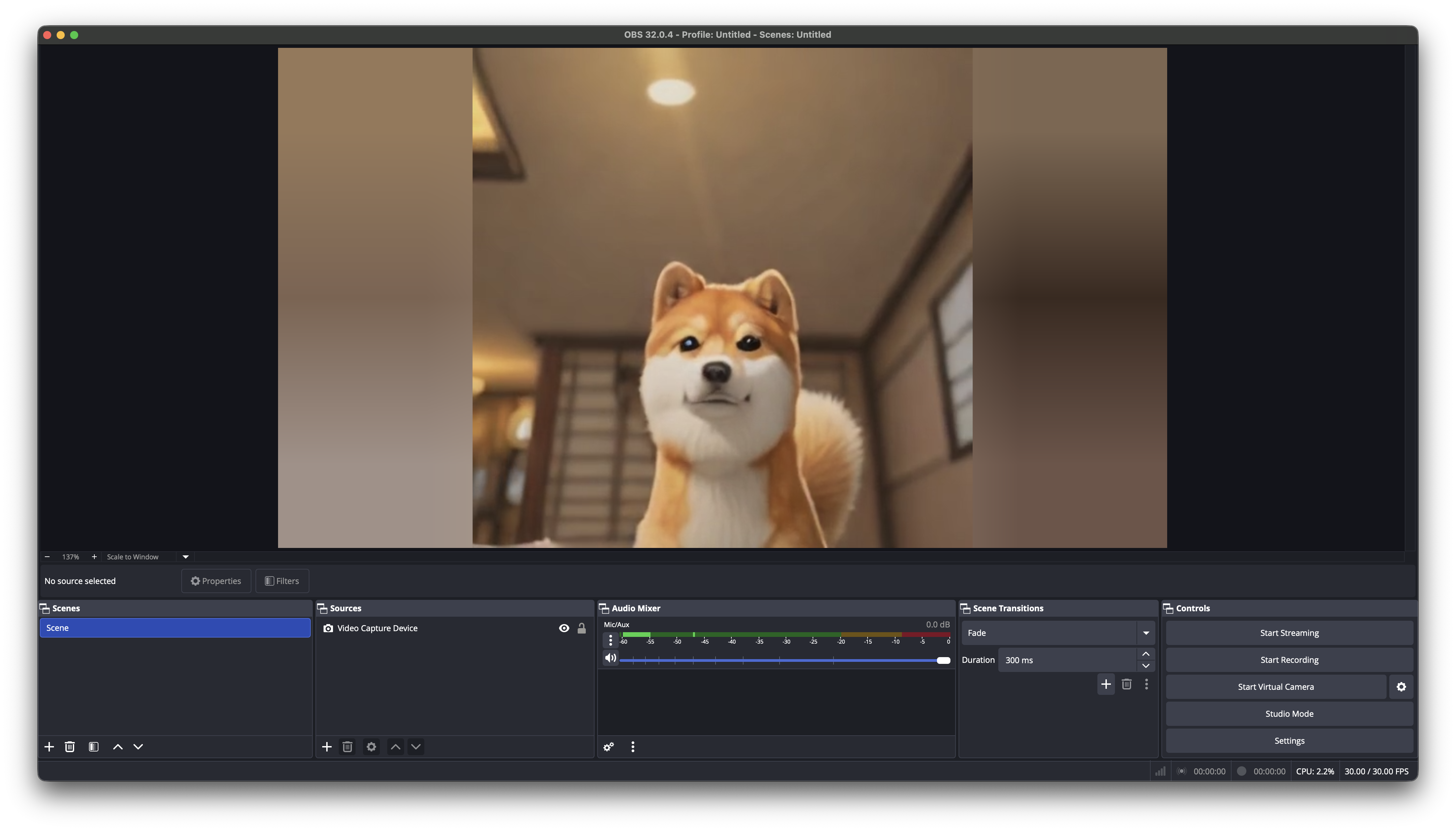
Once installed, adding AI effects to your stream is simple:
### 1. Add a Video Source
Add any video source to your scene:
* Video Capture Device (webcam)
* Window Capture
* Display Capture
* Media Source (video file)
### 2. Add the Daydream Filter
1. Right-click your video source
2. Select **Filters**
3. Click **+** under "Effect Filters"
4. Choose **Daydream**
### 3. Log In
1. Click the **Login** button in the filter settings
2. A browser window opens for authentication
3. Sign in with your Daydream account
4. The plugin automatically receives your credentials
### 4. Configure Your Effect
1. Enter a prompt describing your desired effect:
* "anime character"
* "oil painting, impressionist style"
* "cyberpunk, neon lights"
2. Adjust parameters as needed
3. Toggle the filter on to start the AI processing
The first time you enable the filter, it may take a few seconds to connect and
start processing.
## Filter Settings
| Setting | Description |
| --------------- | -------------------------------------------------- |
| **Prompt** | Text describing the desired visual effect |
| **Model** | AI model to use (SDXL, SD Turbo, etc.) |
| **Guidance** | How closely to follow the prompt (1.0-3.0) |
| **ControlNets** | Preserve structure from input (depth, edges, etc.) |
| **IP Adapter** | Apply style from a reference image |
## Troubleshooting
### Plugin Not Showing Up
* Make sure OBS is version 31.1 or later
* Restart OBS after installation
* Check the plugin is in the correct directory
### Login Issues
* Ensure your browser can open new windows
* Try logging in at [daydream.live](https://daydream.live) first
* Check your firewall isn't blocking the connection
### Performance Issues
* Lower your input resolution (512x512 recommended)
* Reduce the number of enabled ControlNets
* Try SD Turbo for faster processing
## Next Steps
* [Features](/sdks/obs/features) - ControlNets, IP Adapter, prompt tips
* [Building from Source](/sdks/obs/building) - For developers and contributors
* [Quickstart](/api/quickstart) - Full Daydream quickstart guide
## Requirements
| Platform | Version |
| ---------- | --------------------------- |
| OBS Studio | 31.1 or later |
| macOS | 12.0 (Monterey) or later |
| Windows | 10 or later |
| Linux | Ubuntu 20.04+ or equivalent |
You'll also need a [Daydream account](https://daydream.live).
## Installation
1. Download the latest release from [GitHub Releases](https://github.com/daydreamlive/daydream-obs/releases)
2. Install the plugin:
* **macOS**: Double-click the `.pkg` installer
* **Windows**: Run the `.exe` installer
* **Linux**: Extract to `~/.config/obs-studio/plugins/`
3. Restart OBS Studio
When upgrading the plugin, remove the Daydream filter and re-add it after installation.
## Quick Start
Once installed, adding AI effects to your stream is simple:
### 1. Add a Video Source
Add any video source to your scene:
* Video Capture Device (webcam)
* Window Capture
* Display Capture
* Media Source (video file)
### 2. Add the Daydream Filter
1. Right-click your video source
2. Select **Filters**
3. Click **+** under "Effect Filters"
4. Choose **Daydream**
### 3. Log In
1. Click the **Login** button in the filter settings
2. A browser window opens for authentication
3. Sign in with your Daydream account
4. The plugin automatically receives your credentials
### 4. Configure Your Effect
1. Enter a prompt describing your desired effect:
* "anime character"
* "oil painting, impressionist style"
* "cyberpunk, neon lights"
2. Adjust parameters as needed
3. Toggle the filter on to start the AI processing
The first time you enable the filter, it may take a few seconds to connect and
start processing.
## Filter Settings
| Setting | Description |
| --------------- | -------------------------------------------------- |
| **Prompt** | Text describing the desired visual effect |
| **Model** | AI model to use (SDXL, SD Turbo, etc.) |
| **Guidance** | How closely to follow the prompt (1.0-3.0) |
| **ControlNets** | Preserve structure from input (depth, edges, etc.) |
| **IP Adapter** | Apply style from a reference image |
## Troubleshooting
### Plugin Not Showing Up
* Make sure OBS is version 31.1 or later
* Restart OBS after installation
* Check the plugin is in the correct directory
### Login Issues
* Ensure your browser can open new windows
* Try logging in at [daydream.live](https://daydream.live) first
* Check your firewall isn't blocking the connection
### Performance Issues
* Lower your input resolution (512x512 recommended)
* Reduce the number of enabled ControlNets
* Try SD Turbo for faster processing
## Next Steps
* [Features](/sdks/obs/features) - ControlNets, IP Adapter, prompt tips
* [Building from Source](/sdks/obs/building) - For developers and contributors
* [Quickstart](/api/quickstart) - Full Daydream quickstart guide