

What is Ingest?
Think of ingest as the pathway that livestreams passes through to reach the internet.Why do we need ingest?
Your video needs to get to a platform (like Twitch, YouTube, or Facebook) somehow! The ingest server is the platform’s receiving point. It accepts your stream, processes it, and then distributes it to all your viewers. The key term you’ll see: Ingest URL : The specific address where you send your stream. When you create a stream with the Daydream API, you’ll receive an ingest URL in the response that looks like the following. Example:How to Ingest
When you go live, your camera and microphone capture video and audio. Your streaming software (like OBS, Streamlabs, or built-in apps) takes that content and sends it to an ingest server - basically a computer that receives your stream.Web Browser Method
1
Create a stream
Create a stream using the Daydream API.
2
Implement the Webcam
Workflow Diagram
OBS Ingest Method
1
Create a stream
Create a stream using the Daydream API.
2
Get the Ingest URL
In the response from the Create Stream API call, find the
whip_url field.3
Copy the Ingest URL
Copy the
whip_url to use in the OBS settings.
https://ai.livepeer.com/live/video-to-video/<STREAM_KEY>/whip4
Set the OBS Settings
- Open OBS and go to Settings
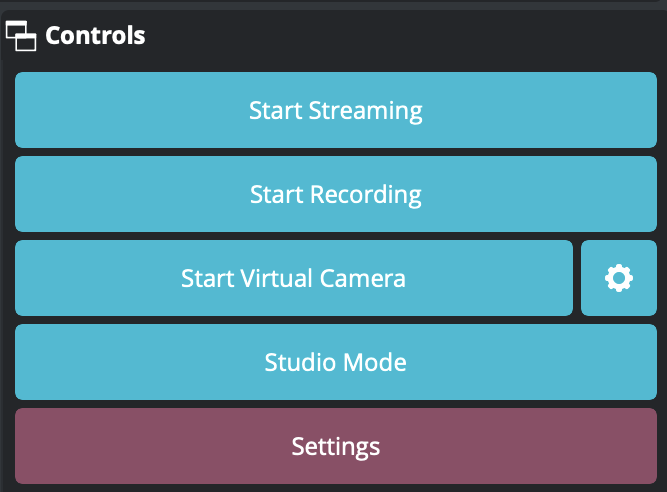
- Click on the
Streamtab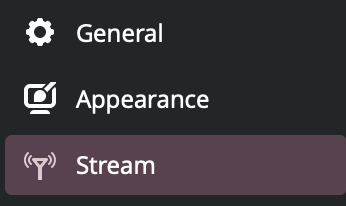
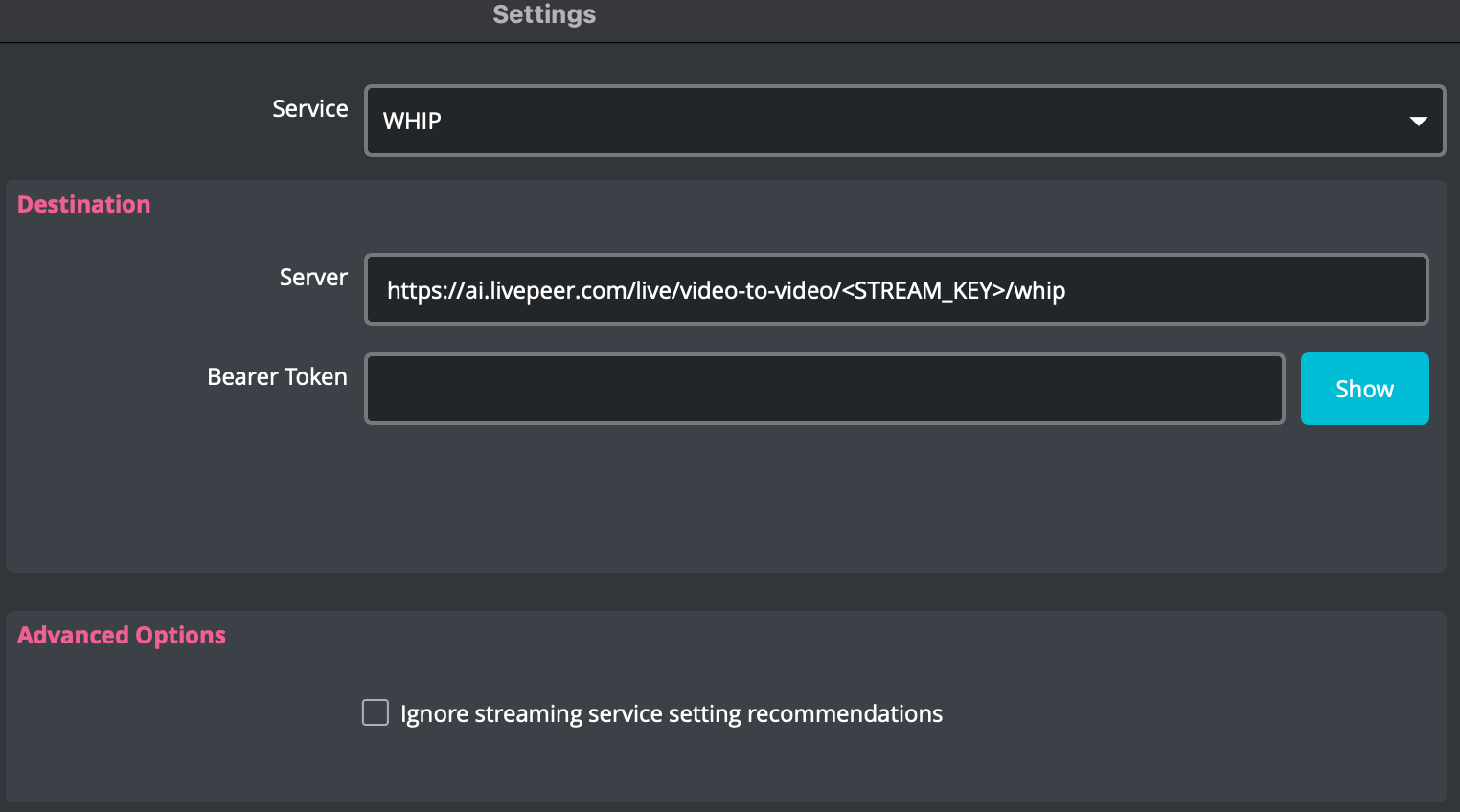
- Set the OBS settings to the following:
- Service:
WHIP - Server:
https://ai.livepeer.com/live/video-to-video/<STREAM_KEY>/whip - Bearer Token:
EMPTY - Save the settings.
5
Start Streaming
Under the
Controls section, select Start Streaming to start the stream.Make sure you have a video capture device selected as the source and is turned on.