

Unity Plugin Installation
Add real-time AI video effects to your Unity projects.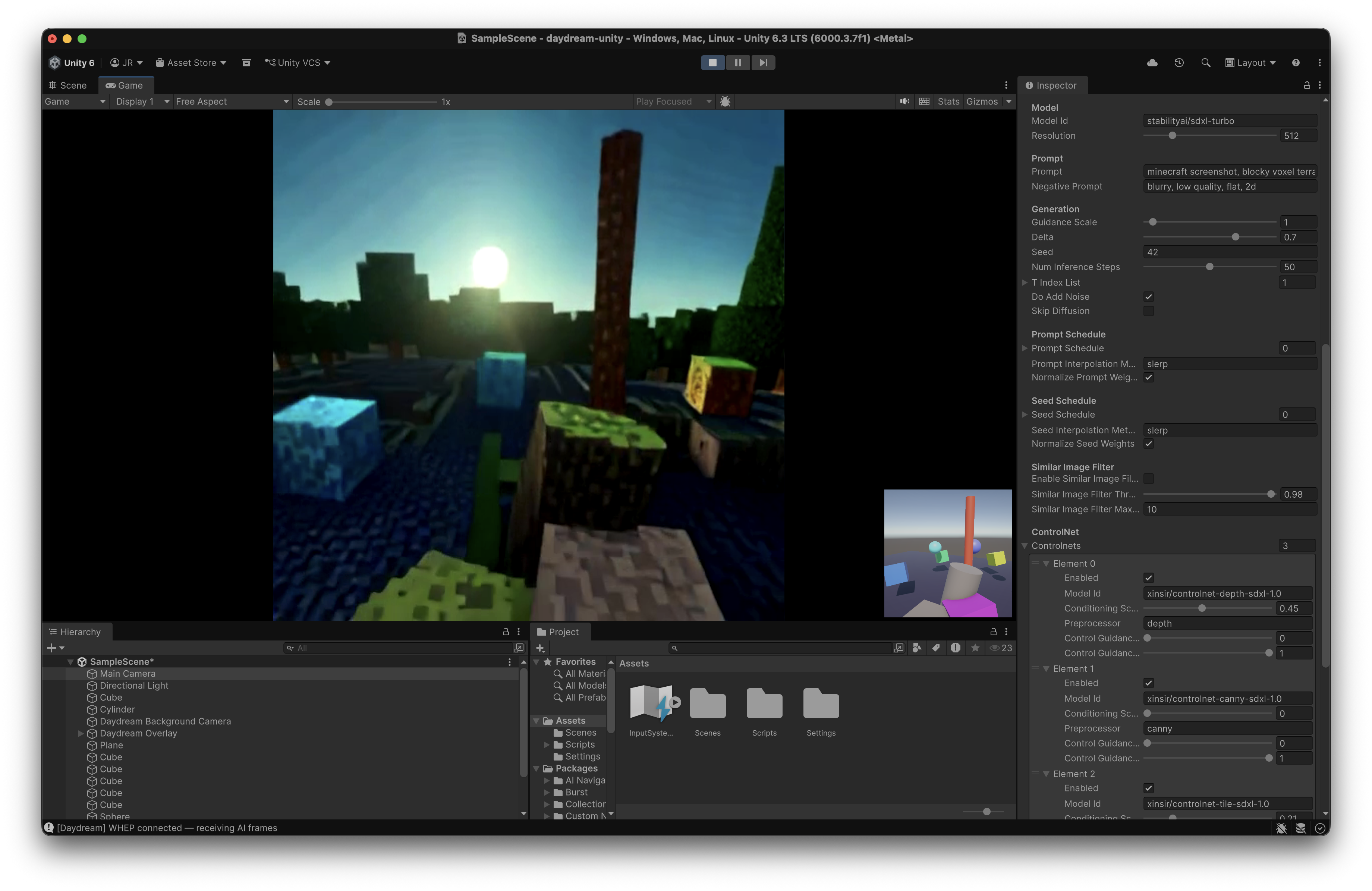
Requirements
You’ll also need a Daydream account.
The plugin works with URP, HDRP, and Built-in render pipelines.
Installation
- Open Window > Package Manager
- Click + > Add package from git URL…
- Enter the repository URL:
- Also install the WebRTC package if not already present
Quick Start
Once installed, adding AI effects to your scene takes a few clicks:1. Add the Component
- Select any Camera in your scene
- Click Add Component in the Inspector
- Search for Daydream and add it
2. Log In
- Press Play — a browser window opens for authentication
- Sign in with your Daydream account
- The plugin automatically receives your credentials
Your login persists between sessions. Credentials are saved to
~/.daydream/credentials and shared across Daydream plugins (Unity, OBS, TouchDesigner).3. Configure Your Effect
- Enter a prompt describing your desired effect:
- “anime character, vibrant colors”
- “oil painting, impressionist style”
- “cyberpunk, neon lights”
- Adjust parameters as needed
- Press Play to start the AI processing
Filter Settings
Demo Scene
Import the Demo Scene sample from the Package Manager for WASD + mouse camera controls and sample geometry for testing.The demo scene requires the Input System package.
Troubleshooting
Component Not Available
- Make sure you’re using Unity 6 (6000.x) or later
- Verify the WebRTC package (3.0.0) is installed
- The Daydream component can only be added to GameObjects with a Camera
Login Issues
- Ensure your browser can open new windows
- Try logging in at daydream.live first
- Check your firewall isn’t blocking localhost connections
No Video Output
- Check the Unity Console for
[Daydream]log messages - Verify your API key is valid
- Ensure you have a stable internet connection
Next Steps
- Features - ControlNets, IP Adapter, prompt scheduling
- Scripting API - C# scripting and programmatic control
- Quickstart - Full Daydream quickstart guide