

Using nodes in Scope
The Scope node system enables third-party extensions to provide custom pipelines. Install nodes to access additional models, preprocessors, and capabilities beyond the built-in pipelines.Node Sources
Nodes can be installed from three sources:Git Installation
You can paste the URL directly from your browser:scope-ltx-2 plugin directly from GitHub to add a 22B audio-video pipeline to Scope.
PyPI Installation
Local Installation
Local nodes are installed in editable mode, meaning code changes take effect after reloading the node.
Installing Nodes
- Desktop App
- Manual Installation
1
Open Node Settings
Click the gear icon in the app header to open the Settings dialog.
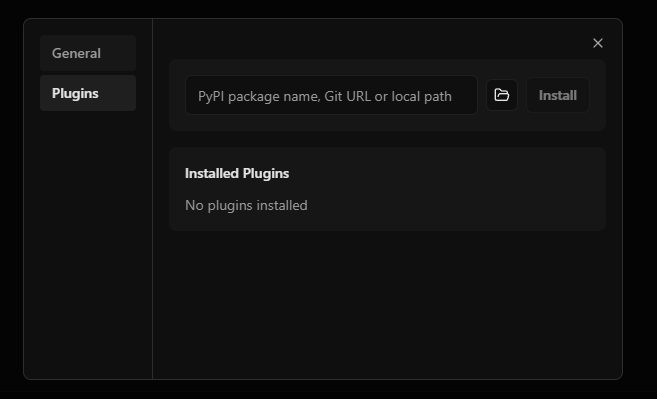
2
Enter package spec
In the installation input field, enter the node source (Git URL, PyPI package name, or local path).You can also click Browse to select a local node directory.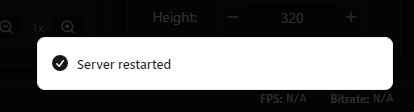
3
Install
Click the Install button and wait for installation to complete.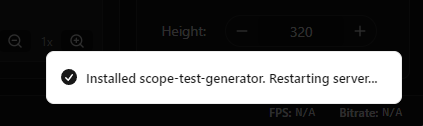
4
Verify installation
The node should appear in the installed nodes list, and its pipelines will be available in the pipeline selector.
Managing Nodes
Viewing Installed Nodes
The Nodes tab in Settings displays all installed nodes with their source information.Uninstalling a Node
1
Find the node
In the Nodes tab, locate the node you want to remove.
2
Uninstall
Click the trash icon next to the node.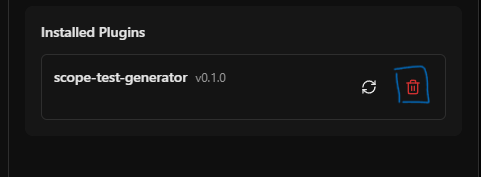
3
Wait for restart
The server will restart to unload the node.
Updating a Node
Scope automatically checks for updates when you open the Nodes tab.1
Open the Nodes tab
Any node with a newer version available shows an Update button.
2
Update
Click the Update button next to the node.
3
Wait for restart
The server will restart to load the updated node.
Local nodes do not support update detection. To pick up code changes for a local node, use Reload instead.
Reloading a Node (Local Only)
When developing a local node, you can reload it after making code changes without reinstalling:1
Make your code changes
Edit the node source files.
2
Reload
Click the reload icon next to your locally installed node.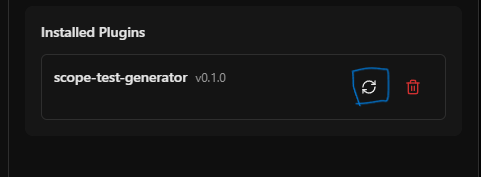
3
Wait for restart
The server will restart to pick up the changes.
The reload button only appears for nodes installed from local paths.
Deep Link Installation
External sources can facilitate node installation via protocol URLs:- The desktop app opens (or launches if not running)
- The Settings dialog opens with the Nodes tab selected
- The package spec is pre-filled in the input field
- You confirm to begin installation
CLI Commands
Thedaydream-scope CLI provides commands for managing nodes directly from the terminal.
Listing Installed Nodes
Installing a Node
Uninstalling a Node
Troubleshooting
Node installation fails
Node installation fails
- Check that the package spec is correct (valid Git URL or PyPI package name)
- Verify your internet connection
- Check for dependency conflicts in the installation error message
Node pipelines don't appear
Node pipelines don't appear
- Ensure the server restarted after installation
- Check that the node implements the
register_pipelineshook correctly - Verify the node’s pipelines meet your GPU’s VRAM requirements
Server won't start after node install
Server won't start after node install
- The node may have introduced a dependency conflict
- Try uninstalling the node via the Settings dialog
- If that fails, manually remove the node from
~/.daydream-scope/nodes/nodes.txt
See Also
Developing Nodes
Create your own custom pipelines
Node Architecture
Technical details of the node system
Tutorial: Build a VFX Node
Step-by-step tutorial building a complete node from scratch