

Controlling Scope from lighting consoles with DMX and Art-Net
DMX (Digital Multiplex) is the industry standard for controlling stage lighting and effects. Scope supports the Art-Net protocol, allowing you to map DMX channels directly to pipeline parameters. If you are already running a lighting console for a show, you can control Scope’s real-time AI video from the same surface you use for lights.Why DMX?
DMX is the standard protocol in professional live events. If you are running a lighting console (grandMA, Chamsys, ETC, etc.), DMX lets you control Scope from the same surface you are already using for your fixtures, turning AI-generated visuals into another element in your cue list.
DMX gives you 512 channels per universe with 256 steps of resolution per channel. Unlike OSC and MIDI where the protocol includes parameter names, DMX requires you to configure which channel controls which parameter.
What you’ll need
- Daydream Scope running (the Art-Net server starts automatically on UDP port 6454)
- An Art-Net source: lighting console, QLC+, MagicQ, TouchDesigner, or similar
- All devices on the same local network (or running on the same machine using
localhost)
Enabling DMX in Scope
DMX input is disabled by default. You need to turn it on before Scope will listen for Art-Net packets.1
Open DMX settings
Launch Scope and go to Settings (gear icon, top-right), then select the DMX tab.
2
Enable DMX input
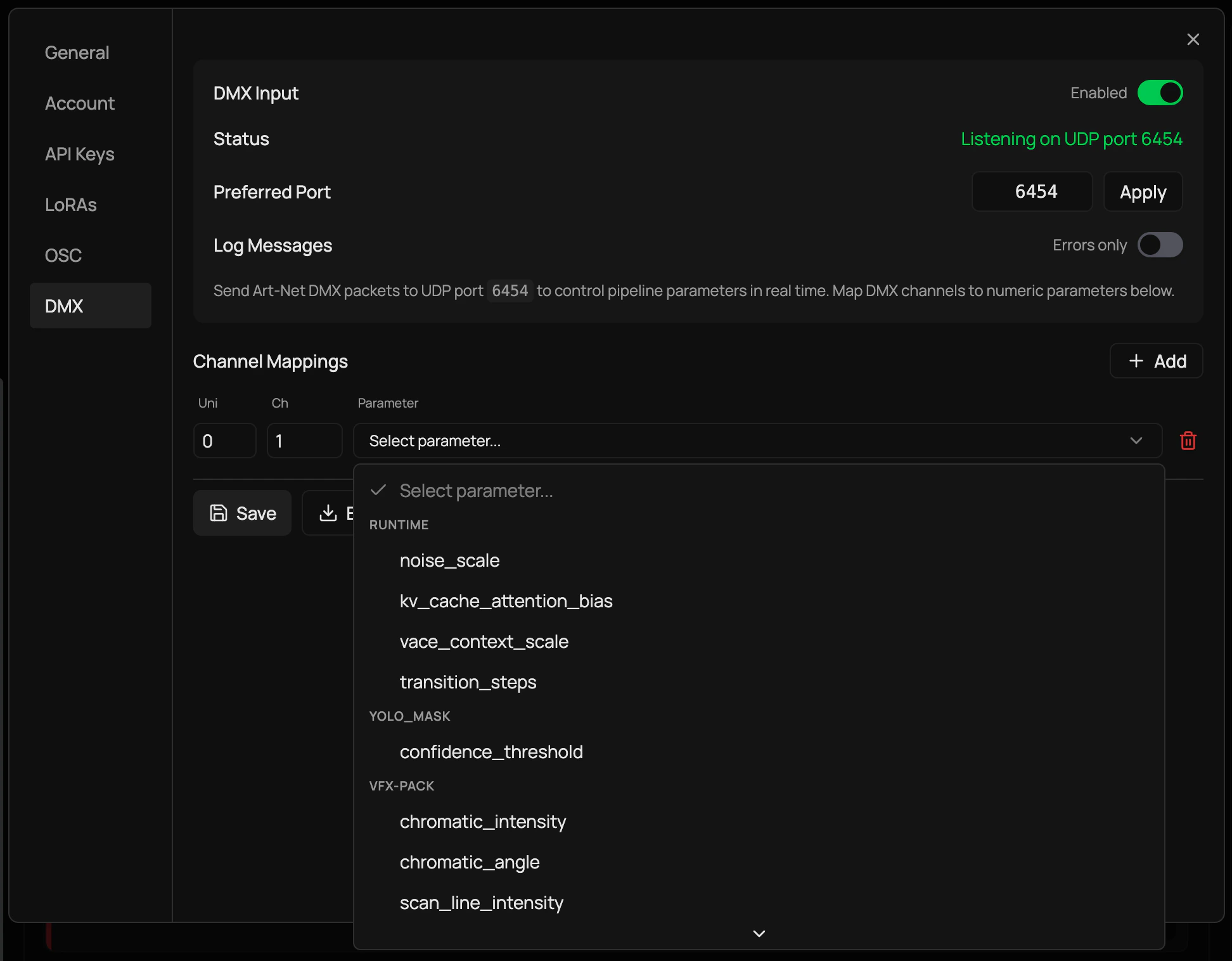
Toggle the Enable switch to on. You should see a status indicator showing “Listening on UDP port 6454”.
3
Verify the port
The default Art-Net port is 6454. If that port is already in use by another application, Scope will automatically try 6455, 6456, and 6457 as fallbacks. You can also set a preferred port manually in the port input field.
The DMX server binds to all network interfaces (
0.0.0.0) by default, so it accepts Art-Net from any device on the network.Configuring channel mappings
Unlike OSC (which uses named addresses) or MIDI (which uses learn mode), DMX channels are just numbers. You need to tell Scope what each channel should control.1
Add a mapping
In the DMX settings tab, click Add Mapping. A new row appears in the mappings grid.
2
Set the universe and channel
Enter the Universe number (usually 0) and the Channel number (1 to 512).
3
Choose a parameter
Select a pipeline parameter from the dropdown. Parameters are grouped by pipeline, and only numeric types (float, integer) are available for mapping. The dropdown shows each parameter’s description and value range.
4
Save your mappings
Click Save to persist your configuration. Mappings are stored at
~/.daydream-scope/dmx-config.json and survive server restarts.5
Test
Send a DMX value on that channel from your console. The parameter should update in real-time.
Import and export
The DMX settings tab includes Export and Import buttons for your channel mapping configuration:- Export downloads your current mappings as a
scope-dmx-config.jsonfile - Import loads mappings from a previously exported JSON file
Connecting your Art-Net source
Lighting consoles (grandMA, Chamsys, ETC)
Most professional consoles have Art-Net output built in:1
Enable Art-Net output
In your console’s network settings, enable Art-Net output.
2
Set the destination
Set the destination IP to the machine running Scope, or use
255.255.255.255 for broadcast.3
Map your channels
Map fixtures or channels to the same universe and channel numbers you configured in Scope. Treat each Scope parameter like a fixture attribute.
QLC+ (free lighting software)
1
Create an Art-Net output
Go to Inputs/Outputs and add an Art-Net output plugin.
2
Configure the universe
Set the output universe to match your Scope mappings.
3
Control channels
Use the Simple Desk to control channels directly, or create fixtures for a more structured setup.
TouchDesigner
1
Create a DMX Out CHOP
Add a DMX Out CHOP to your network.
2
Configure Art-Net output
Set Network Protocol to “Art-Net”, Network Address to the Scope machine’s IP, and Universe to match your mappings.
3
Wire channel data
Connect a CHOP with channel data to the DMX Out. Each sample value (0 to 1) maps to DMX values (0 to 255).
Python (stupidArtnet)
For scripted or automated control, you can send Art-Net packets from Python:Planning your channel layout
A typical mapping strategy for a show:Multi-universe support
Scope accepts Art-Net on any universe. When creating mappings, specify the universe number to separate concerns:- Universe 0, Channel 1 maps to one parameter
- Universe 1, Channel 1 maps to a different parameter
Troubleshooting
No response from Scope
No response from Scope
- Check that the DMX status in Settings shows “Listening on UDP port 6454”
- Verify your Art-Net source is targeting the correct IP and port
- Check that you have created a mapping for the channel you are sending
- Ensure your firewall allows UDP on port 6454
Values not scaling correctly
Values not scaling correctly
Check your parameter’s min/max range in the mapping dropdown. DMX 0 maps to min, DMX 255 maps to max. If the behavior seems inverted, swap your min and max values.
Latency or jitter
Latency or jitter
Art-Net over UDP is fast but does not guarantee delivery. On busy networks or Wi-Fi, you may see occasional drops. For mission-critical shows, use a dedicated Art-Net network or wired connections.
Port 6454 already in use
Port 6454 already in use
Another application is using the Art-Net port. Close other Art-Net receivers, or let Scope fall back to ports 6455 through 6457. You can also set a preferred port manually in the settings.
Works locally but not across the network
Works locally but not across the network
- Verify both machines are on the same subnet
- Replace
localhostwith the actual LAN IP of the Scope machine - Check that no firewall is blocking UDP on port 6454
- Try the broadcast address
255.255.255.255if unicast is not working
See also
Using OSC
Control Scope with named parameter paths over UDP
Using MIDI
Control Scope from MIDI controllers and DAWs
Using Spout
Share real-time video between Scope and other applications on Windows