

Reporting issues
Scope includes built-in tools that make it easy to capture logs, diagnose problems, and report bugs, whether you’re running locally or on Remote Inference. This guide covers everything you need to submit a clear, actionable bug report.The log panel
Scope has a real-time log panel at the bottom of the interface that displays what’s happening under the hood. This is your first stop when something goes wrong.Opening the log panel
Click the terminal icon in the bottom status bar to toggle the log panel open or closed. When the panel is closed and new logs arrive, a badge shows the number of unread messages.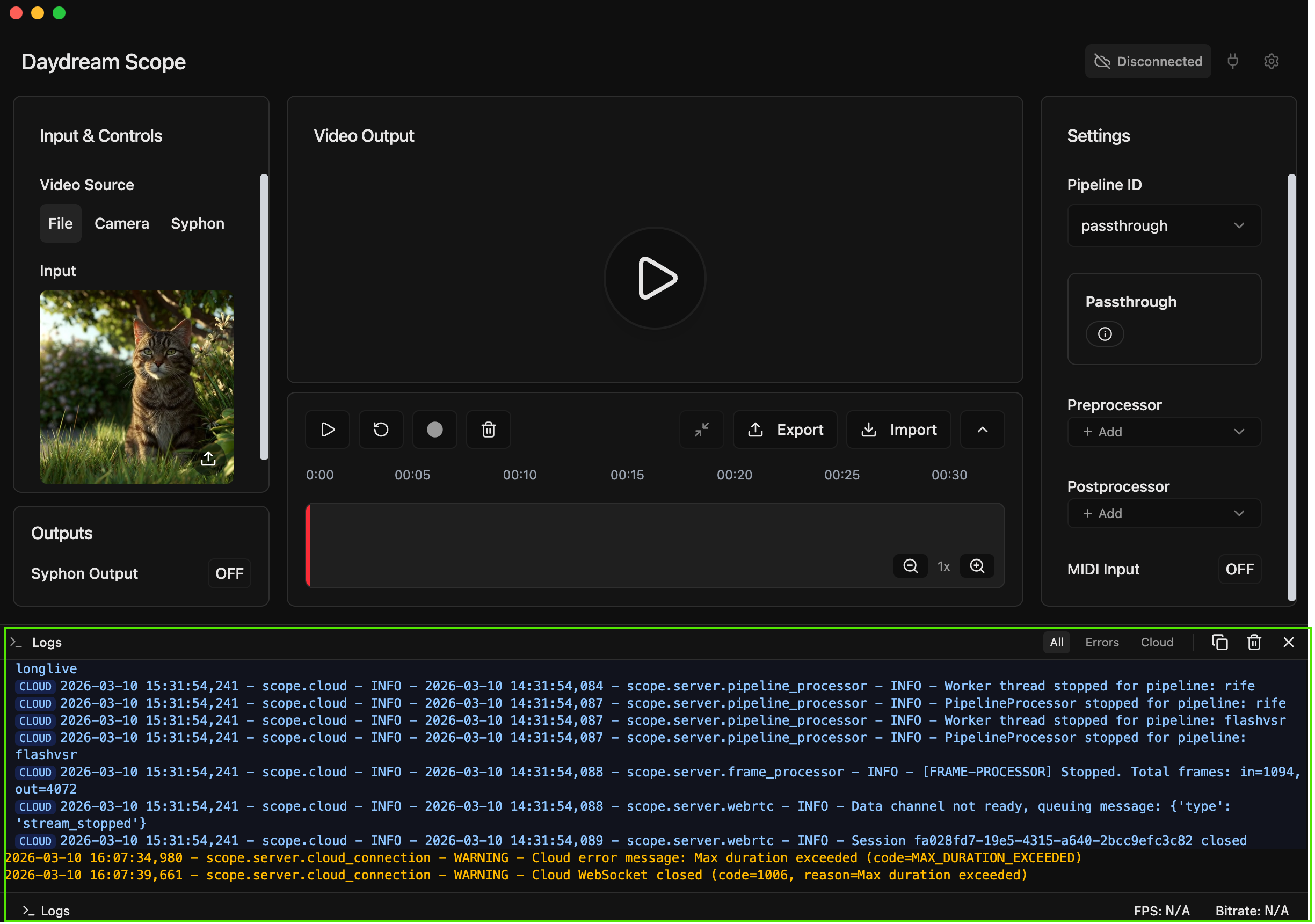
Filtering logs
The log panel has three filter tabs:Log colors
Logs are color-coded by severity:- Red - errors that need attention
- Amber - warnings that may indicate a problem
- Blue - informational messages (normal operation)
- Gray - debug-level detail
Copy and clear
Use the Copy button to copy all visible logs to your clipboard, which is useful for pasting into a bug report. The Clear button resets the panel.Reporting a bug
Scope has a built-in bug reporter that bundles your logs and opens a GitHub issue template in one flow.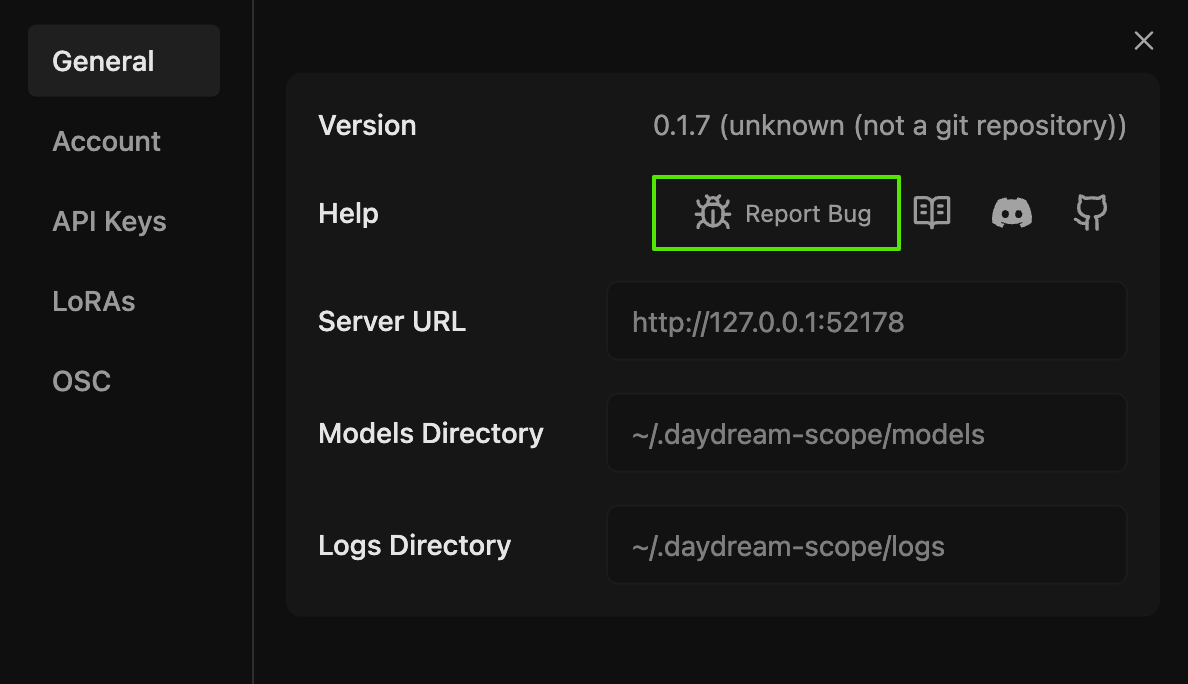
1
Open settings
Click the gear icon (top-right) and navigate to the General tab.
2
Click Report Bug
Click the Report Bug button. A dialog will appear with two steps.
3
Copy your logs
Click Copy Logs in the dialog. This fetches your current session’s log file and copies it to your clipboard. You’ll paste these into the GitHub issue.
4
Open the GitHub issue
Click Create Bug Report. This opens a pre-filled issue template on the Scope GitHub repository. Paste your logs into the designated section and fill in the details.
The bug reporter works for both local and Remote Inference sessions. When running remotely, cloud logs are included automatically.
Log files on disk
Scope saves logs to disk so you can access them even after closing the app.- Default location:
~/.daydream-scope/logs - File format:
scope-logs-YYYY-MM-DD-HH-MM-SS.log - Retention: logs older than 1 day are cleaned up automatically
Advanced: verbose logging
For harder-to-reproduce issues, you can enable more detailed logging:Verbose logging produces significantly more output. Only enable it when actively debugging as it can affect performance with high log volumes.
Writing a good bug report
The more detail you provide, the faster we can fix the issue. A great bug report includes:- What you expected - describe the behavior you were trying to achieve
- What happened instead - describe the actual behavior, including any error messages
- Steps to reproduce - list the exact steps to trigger the problem
- Your environment - OS, GPU model, Scope version, local or Remote Inference
- Logs - paste the logs from the built-in bug reporter or attach the log file
Where to get help
GitHub Issues
Report bugs, request features, and track known issues
Discord
Ask questions and get help from the community and team